Support module — Complete guide
Everything you need to get help from the platform team: create a support request, track its status, and follow the conversation.
6 sections
On this page
1 Overview
The Support module is how you get help from the platform team. When something isn't working, you have a billing question, or you'd like to suggest a feature, you open a support request and follow the answer right from your dashboard.
Each request keeps a full conversation: you describe your issue, the support team replies, and you can answer back until it's resolved.
In short: create a request → choose a category and priority → describe the issue (and attach files) → track its status → reply to the team until it's solved.
2 Before you begin
- Where to find it: in your Dashboard sidebar, use Get Support to open a new request and My Requests to track them.
- This is platform support — for help with Eglise Locale itself (your account, billing, a module that misbehaves), not a contact form for your visitors.
- Response time: the team typically replies within 24–48 hours on business days, and higher-priority requests are handled first.
3 Create a support request
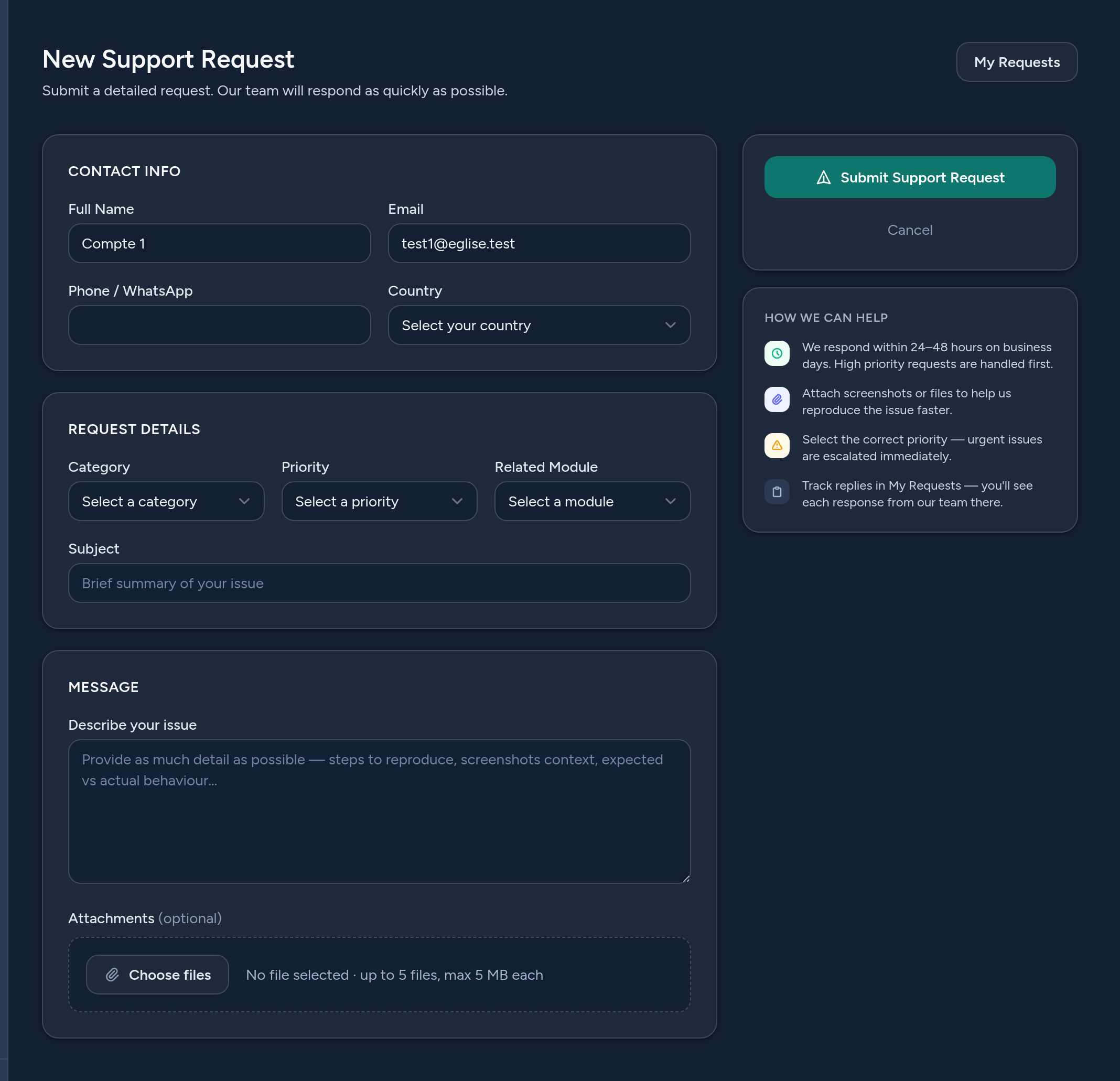
Click New Support Request (or Get Support) and fill the form:
- Contact info — your name, email, phone and country are pre-filled from your account; adjust if needed.
- Category — what the request is about (technical issue, billing, account access, feature request…).
- Priority — Low, Normal, High or Urgent. Choose honestly — urgent issues are escalated first.
- Related module — which part of the platform is concerned (Agenda, Newsletter, Live…).
- Subject & message — a short subject and a clear description. The more detail, the faster we can help.
- Attachments — add screenshots or files (up to 5 files) to illustrate the problem.
4 Track your requests
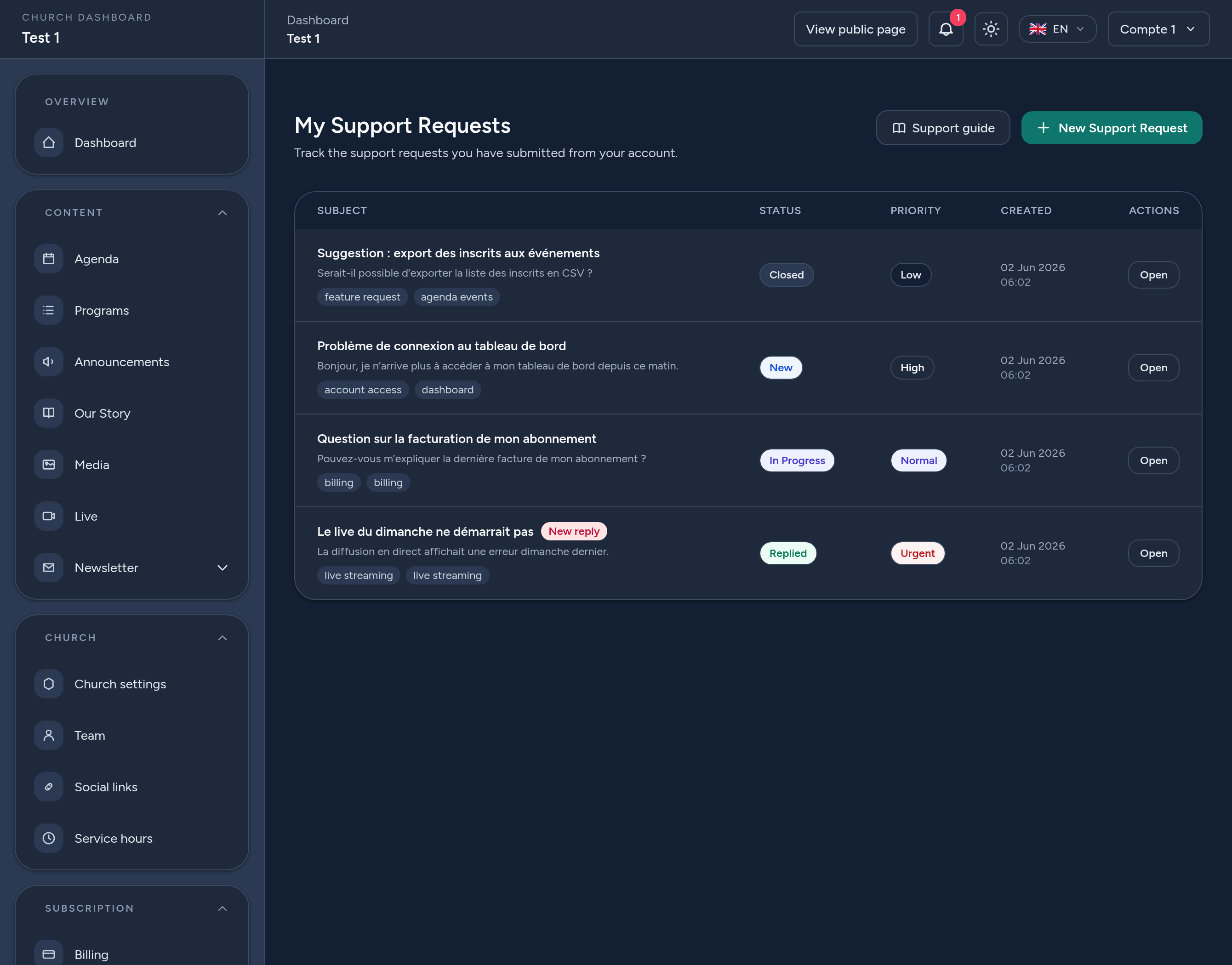
My Requests lists everything you've submitted, with each ticket's status and priority:
- New — just submitted, not yet opened by the team.
- In Progress — the team is working on it.
- Replied — there's an answer waiting for you (a New reply badge highlights it).
- Closed — the request has been resolved and closed.
Click Open on any ticket to see the full conversation.
5 Follow the conversation & reply
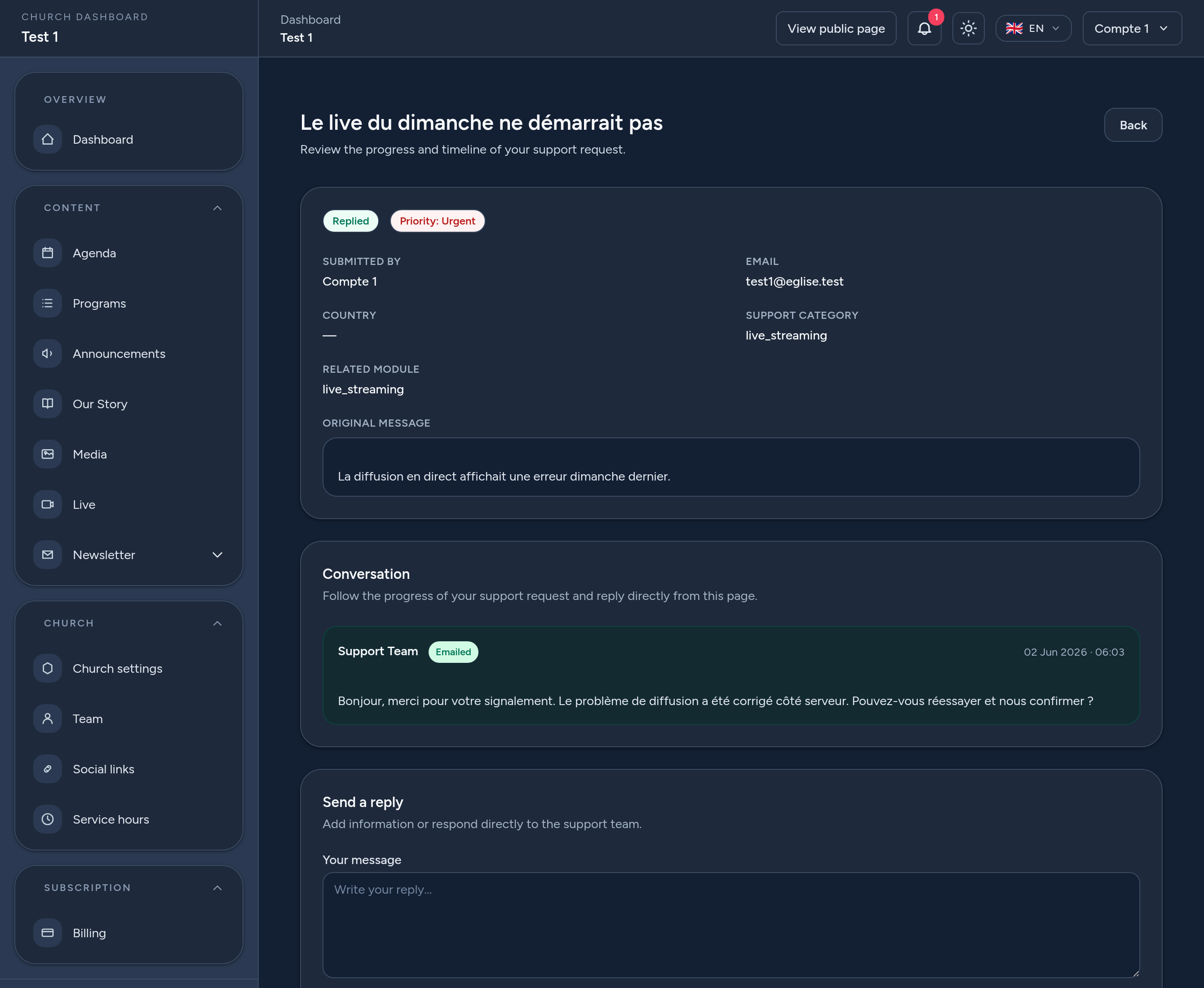
On a request's page you can see the original message, its details (category, module, priority), and the conversation with the support team. Replies from the team are marked clearly.
- Reply — add information or answer the team directly from the page, with optional attachments.
- Closed requests — once a request is closed, the conversation is read-only; open a new request if you need more help.
6 Tips & good practices
- One issue per request — it keeps the conversation focused and faster to resolve.
- Pick the right category and module so your request reaches the right people.
- Be specific — what you did, what you expected, and what happened. Add screenshots.
- Use priority honestly — reserve Urgent for things that block your church.
- Check My Requests for replies, and answer back to keep things moving.
That's it — the platform team is one request away whenever you need a hand.