Media module — Complete guide
Everything you need to build your church gallery: upload photos, add videos, write multilingual captions, publish, and show them in a public carousel.
6 sections
On this page
1 Overview
The Media module lets your church build a gallery of photos and videos — services, baptisms, camps, special events — and show them on your public page in an elegant carousel. Each item can have a title and caption in several languages.
Photos are uploaded to the platform; videos are added as a link (YouTube or Vimeo) and play directly on your page.
In short: add a photo or a video → give it a title and caption (in one or more languages) → publish it → it appears in your public gallery.
2 Before you begin
- Where to find it: open your Dashboard and go to Media.
- Permissions: church owners, managers and editors can manage media.
- Plan quota: some plans limit the number of published media items. If you reach the limit, unpublish or delete one, or upgrade your plan.
- Photos vs videos: photos are uploaded files (JPG, PNG or WEBP, up to 5 MB); videos are public links (YouTube or Vimeo) — the file stays on the video platform, not on our servers.
- Languages: the title and caption can be translated; visitors see each item in their own language when a translation exists.
3 Step 1 — Add a photo or a video
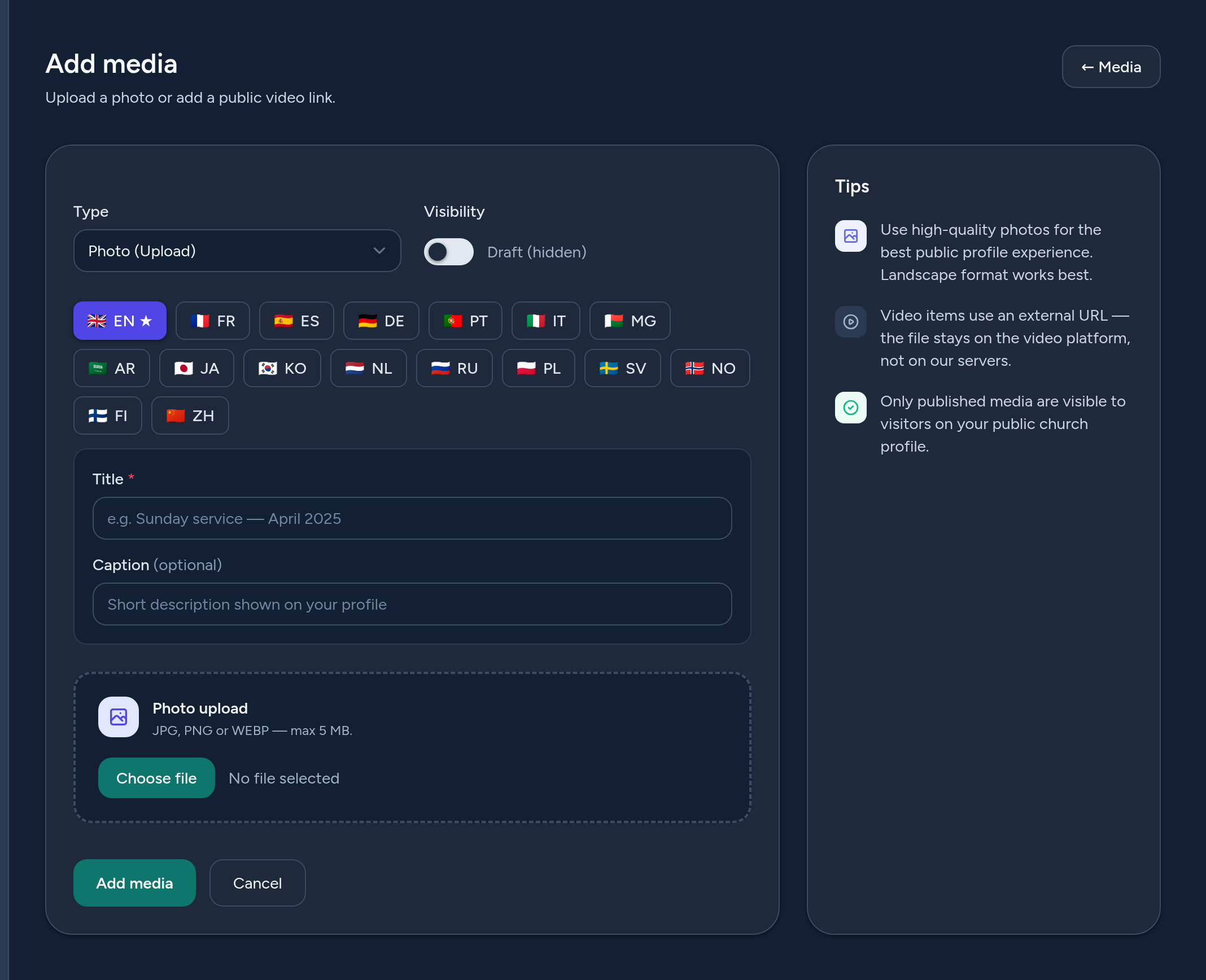
Click Add media and fill the form:
- Type — choose Photo (Upload) or Video (URL). The form adapts to your choice.
- For a photo — upload an image (landscape format works best).
- For a video — paste the public link (YouTube or Vimeo). An optional thumbnail URL can be provided.
- Title (per language) — a short title, required in the default language.
- Caption (per language) — an optional description shown under the media on your public page.
- Visibility — publish it now, or keep it as a hidden draft.
4 Step 2 — Organise & publish your gallery
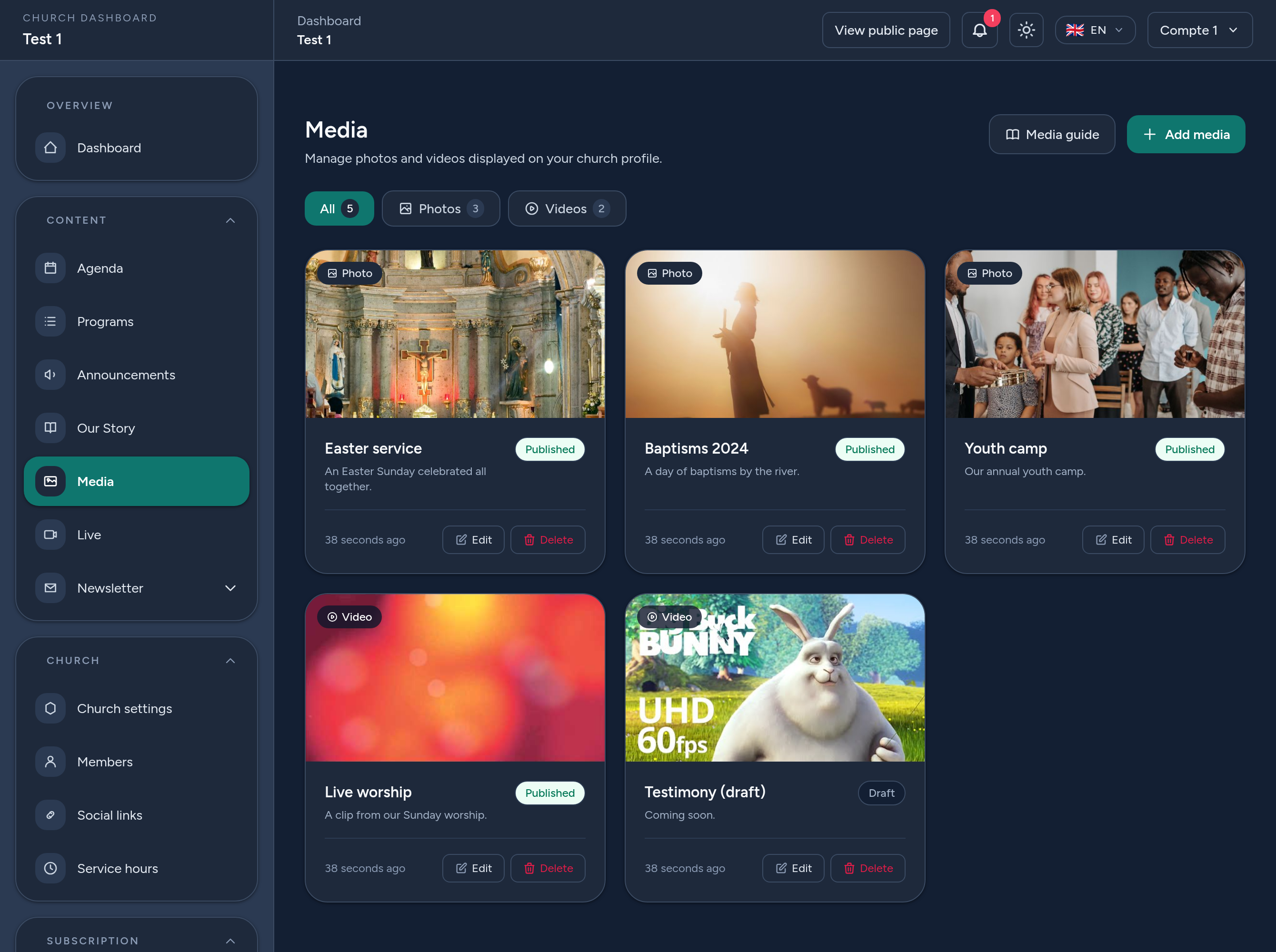
The Media gallery lists every item as a card with a thumbnail and its status (Published or Draft). From there you can:
- Filter by All, Photos or Videos — each tab shows a count.
- View an item, Edit its details and translations, or Delete it.
- Publish or unpublish — only published media appear on your public page.
Videos automatically show a thumbnail (YouTube/Vimeo) so your gallery looks consistent.
5 Where your media appears
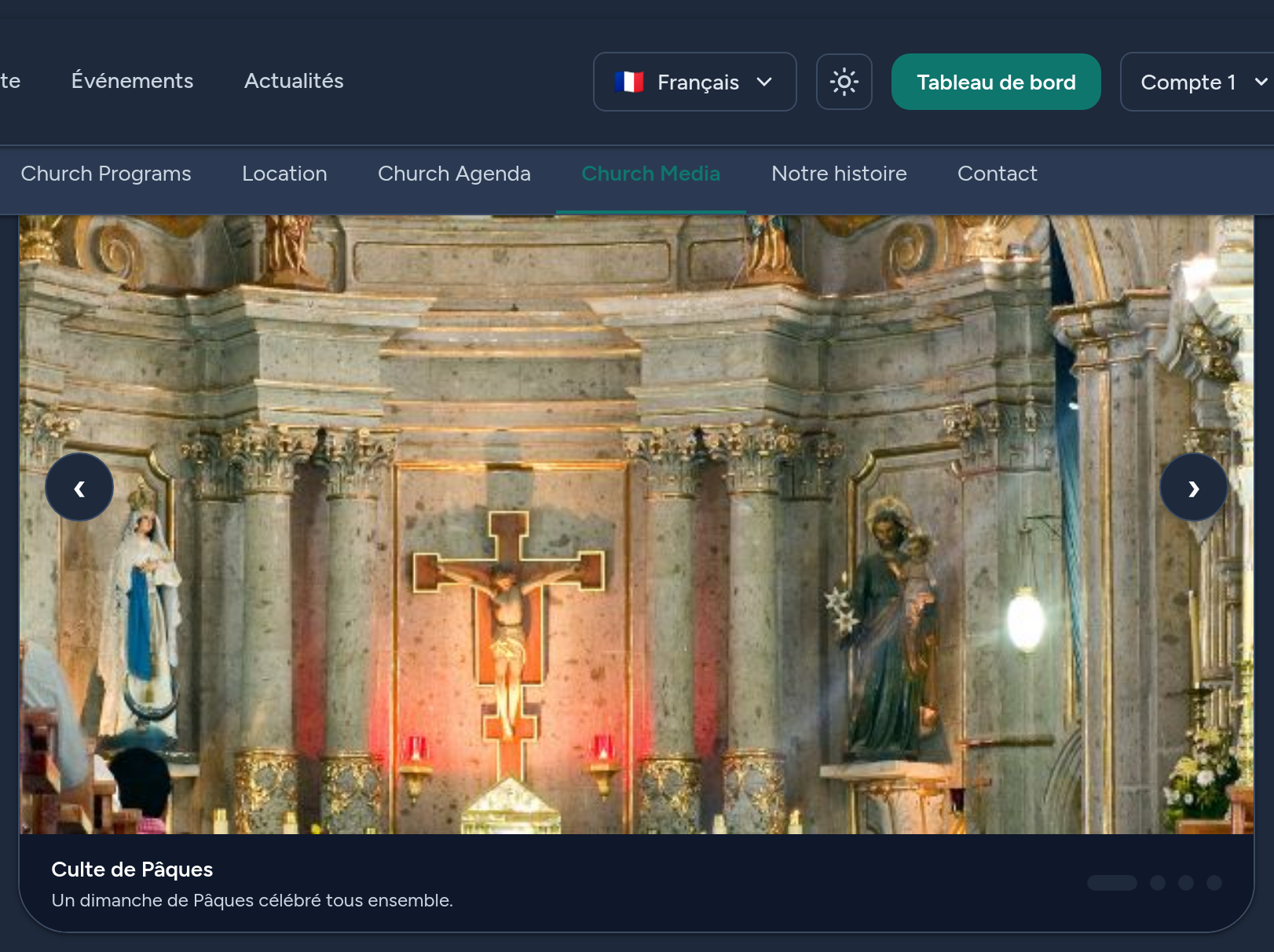
Published media are shown on your public church page, in the Media section, as an elegant carousel: use the arrows or dots to browse, and each slide shows its title and caption. Videos play inline when a visitor clicks the play button, without leaving your page.
Each visitor sees the titles and captions in their own language when you've provided a translation, and the default language otherwise.
6 Tips & good practices
- Use high-quality, landscape photos — they fill the carousel best.
- Write a short caption — it gives context and is shown under each item.
- Mix photos and videos to bring your church life to life.
- Prefer YouTube or Vimeo links for videos so they play inline.
- Keep drafts for items you're still preparing — they stay hidden until you publish.
- Translate titles and captions so every visitor understands your gallery.
That's it — you're ready to showcase the life of your church in pictures and videos.