Newsletter module — Complete guide
Everything you need to grow your list, send campaigns, build audiences, automate emails, and track performance.
9 sections
On this page
1 Overview
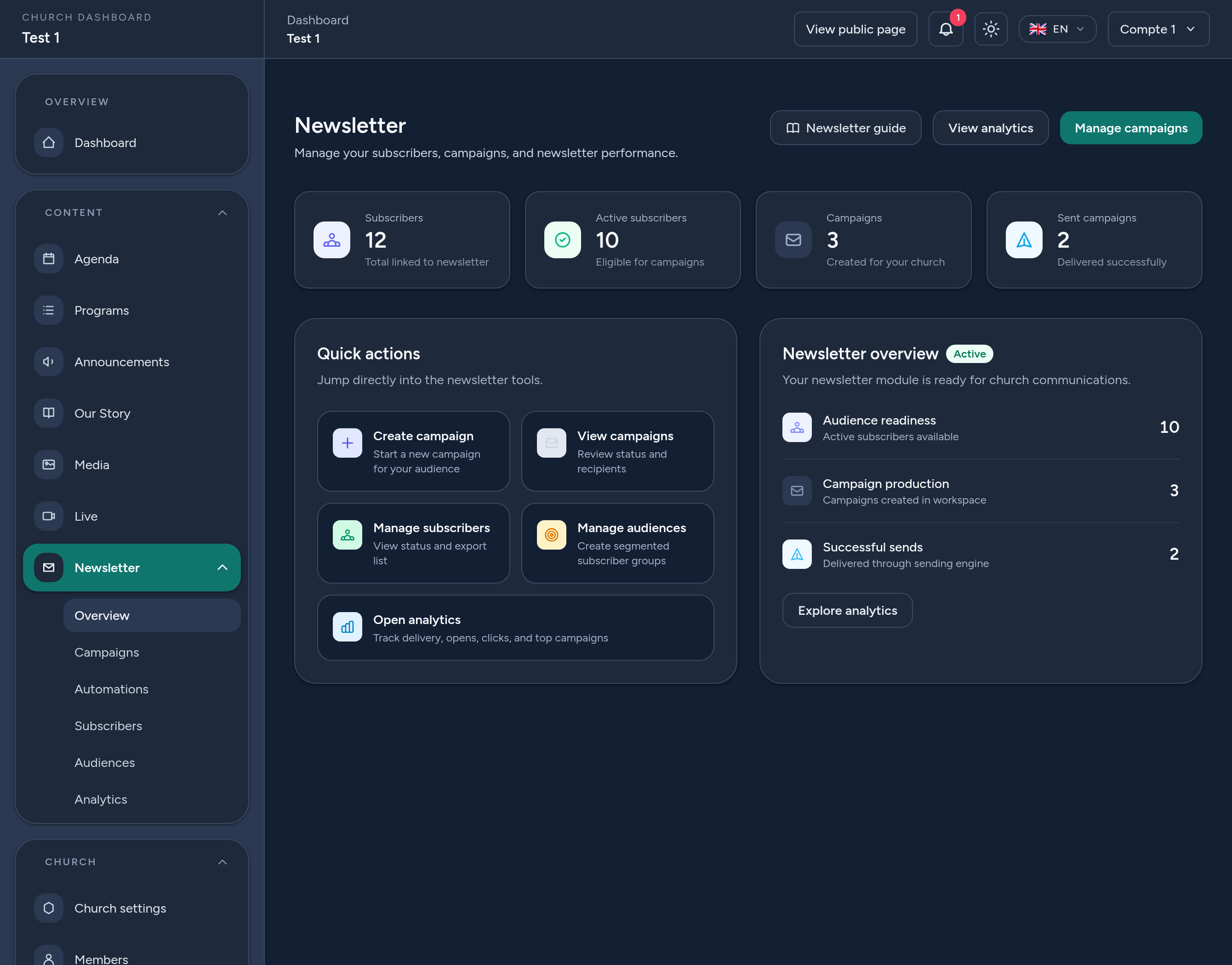
The Newsletter module is your church's email platform. It lets you collect subscribers, send email campaigns, segment your audience, automate emails with triggers, and track performance — all from one place.
Visitors subscribe from your public church page; you then reach them with newsletters, event reminders and welcome emails, and see how they engage.
In short: grow your list → compose a campaign (or set up an automation) → choose who receives it → send or schedule → follow the results in analytics.
2 Before you begin
- Where to find it: open your Dashboard and go to Newsletter. The hub shows your key figures and quick actions.
- Permissions: church owners, managers and editors can manage the newsletter.
- Plan limits: your plan may cap the number of subscribers or emails sent — the dashboard and analytics show your usage.
- Respect consent: people opt in from your page, and every email includes an unsubscribe link, so your list stays clean and compliant.
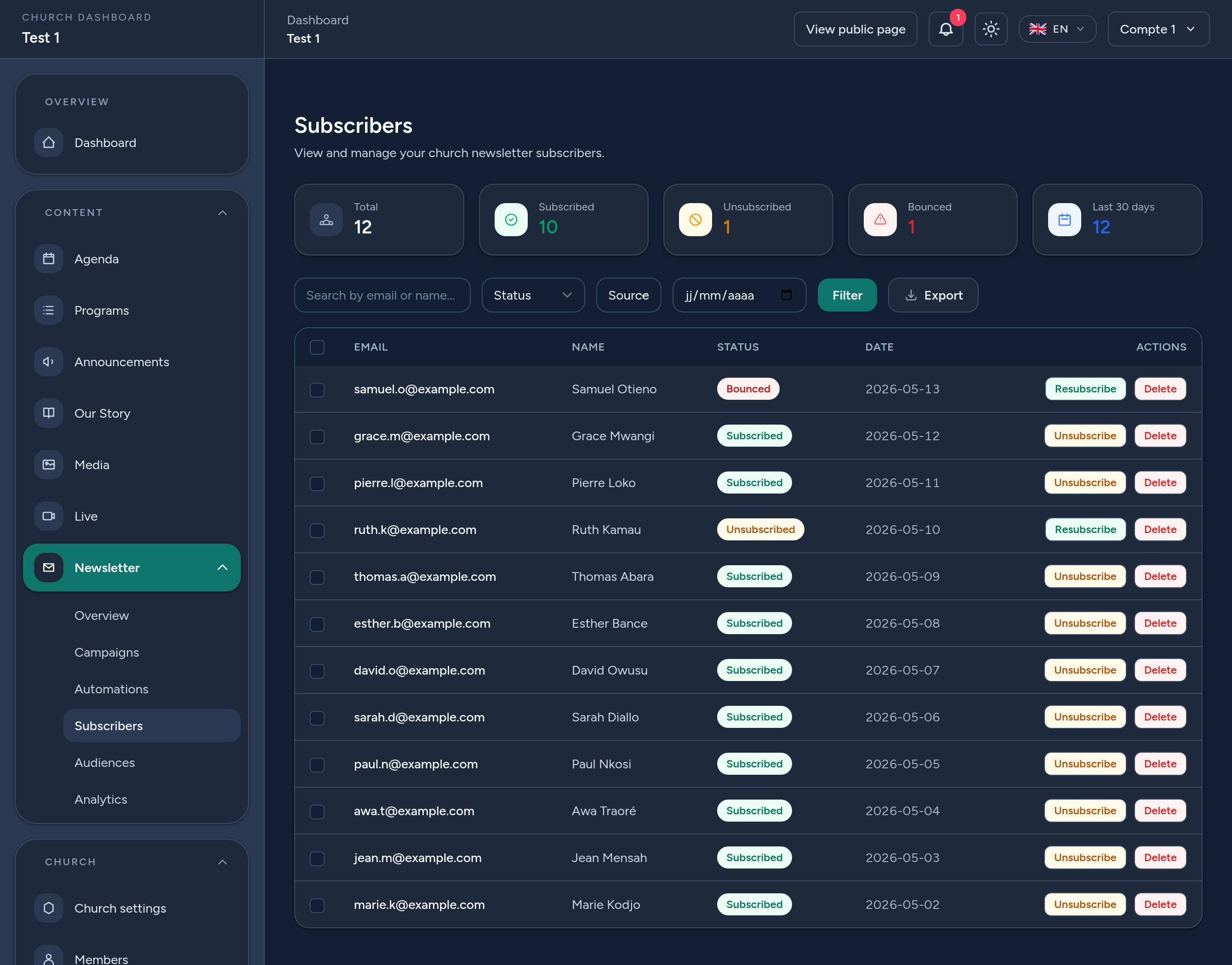
3 Subscribers — grow & manage your list
The Subscribers screen lists everyone on your list, with counters by status (subscribed, unsubscribed, bounced). Subscribers come from several sources: your public page, event sign-ups, or a manual import.
- Search & filter by email, name, status or source.
- Export the list as CSV.
- Manage each person — unsubscribe, resubscribe, or delete.
Only subscribed contacts receive your campaigns.
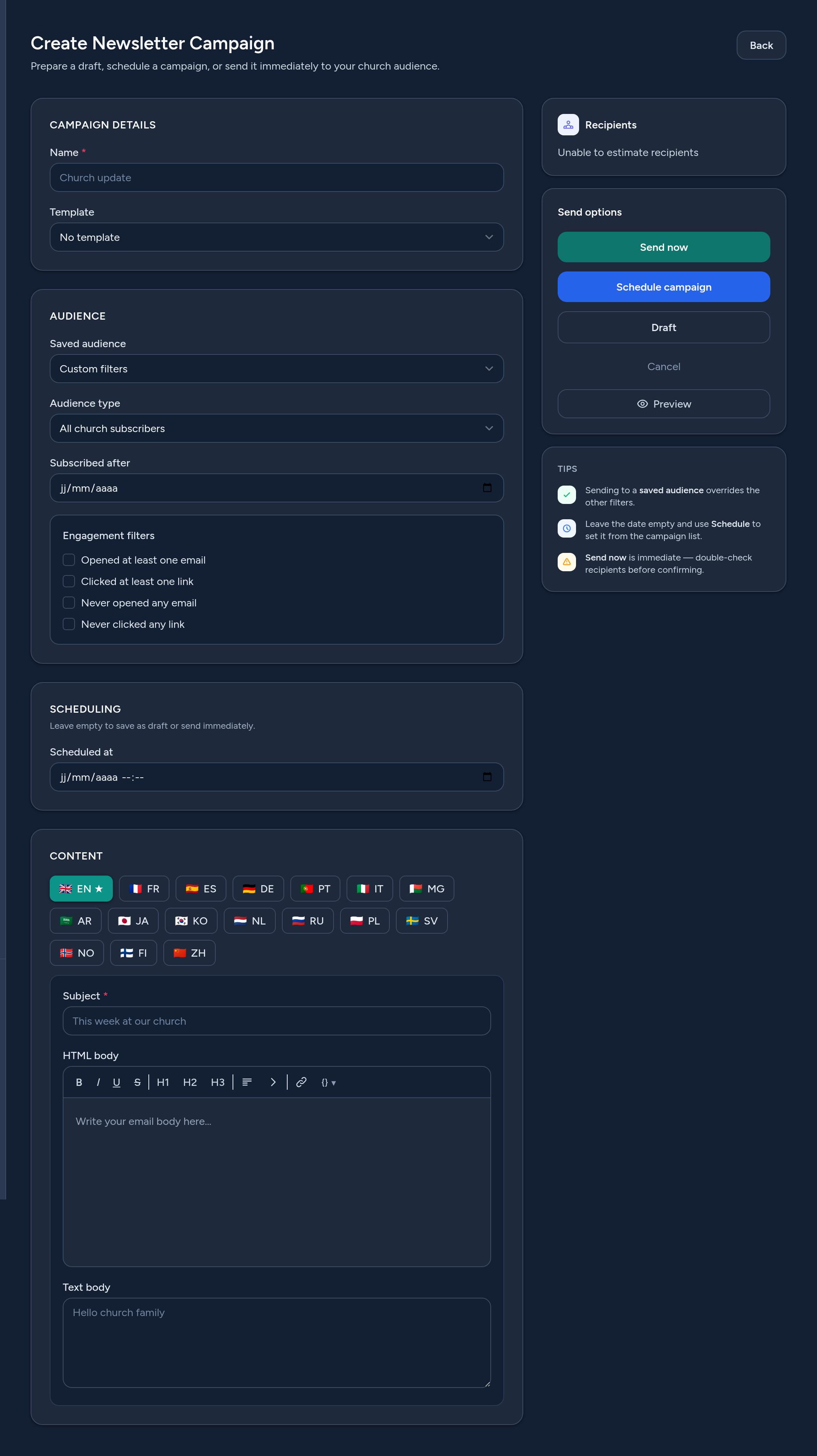
4 Campaigns — compose & send
A campaign is an email you send to your subscribers. Click Create campaign and fill the form:
- Audience — send to all subscribers, a saved audience, or a quick filter (e.g. people who opened a previous email).
- Content — write the subject and body (HTML and plain text), per language. You can start from a template.
- Send options — Send now, Schedule for later, or save as a Draft. You can also send yourself a test first.
5 Audiences — segment your subscribers
An audience is a saved segment of your subscribers, defined by filters (status, source, engagement…). Create audiences such as “Active subscribers from the church page” and reuse them when sending a campaign, instead of rebuilding the filters each time.
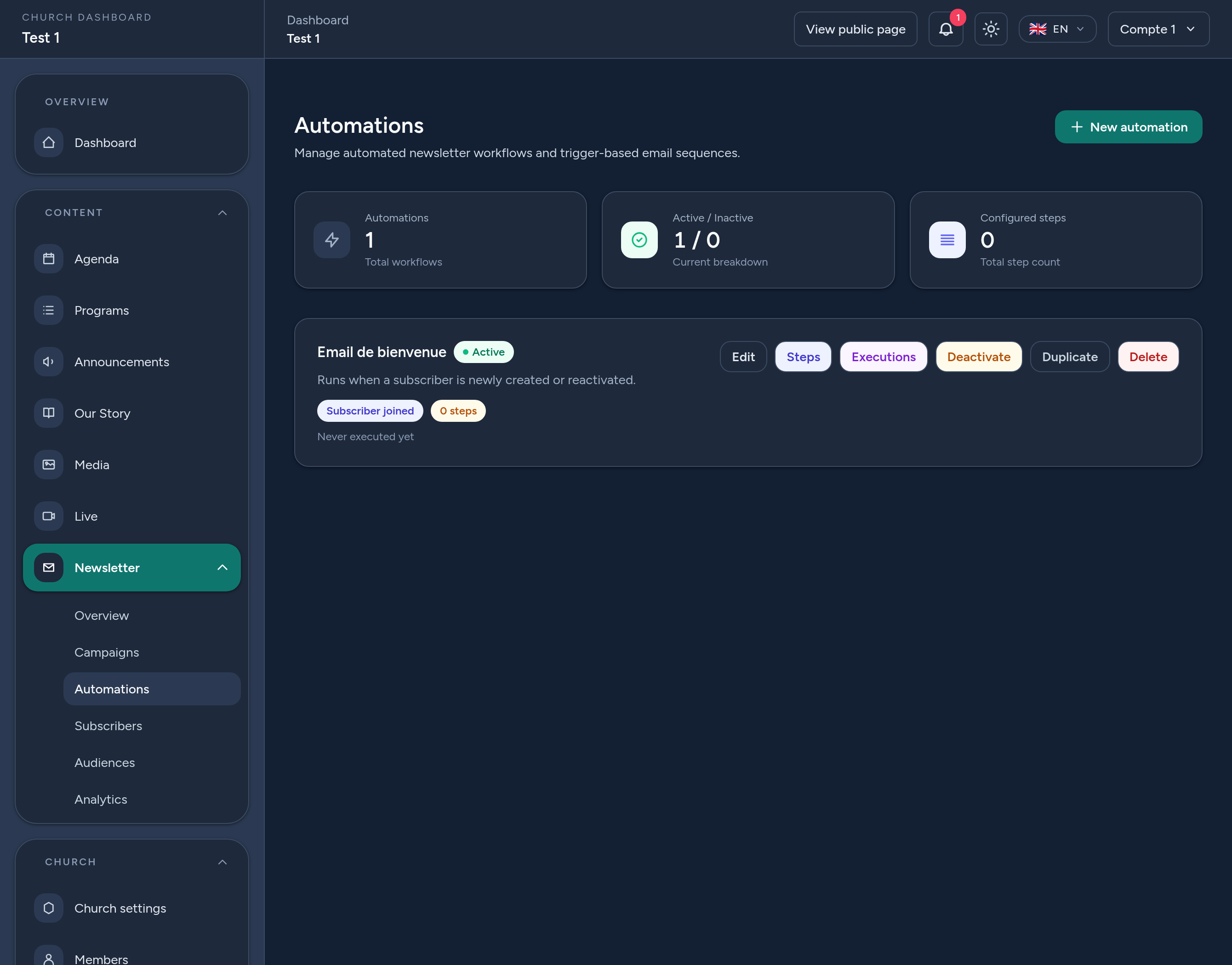
6 Automations — let emails send themselves
Automations send emails automatically when something happens. Choose a trigger — for example a subscriber joins, an event is created, or a weekly/monthly digest — then build the steps (the emails to send). Activate it once, and it runs on its own.
A classic example is a welcome email sent automatically when someone subscribes.
7 Analytics — track performance
The Analytics screen shows how your newsletter performs: subscriber growth, and per-campaign opens, clicks and delivery. Use it to see what resonates and to improve your next campaign.
8 Where visitors subscribe
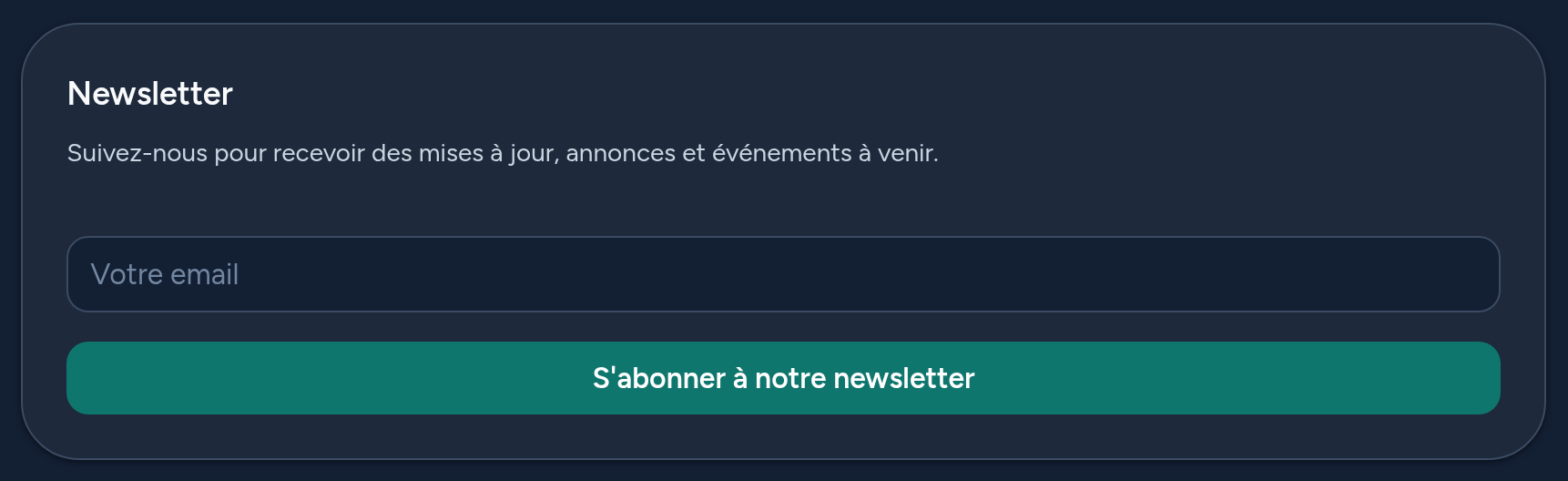
Your public church page has a Newsletter section with a simple subscribe form. When a visitor enters their email, they're added to your list (and a welcome automation can greet them). Event sign-ups can also feed your list.
9 Tips & good practices
- Invite people to subscribe — mention your newsletter from the pulpit and on social media.
- Write a clear subject — it's the first thing subscribers see.
- Send a test to yourself before a big send.
- Use audiences to reach the right people instead of everyone.
- Set up a welcome automation so new subscribers hear from you right away.
- Watch your analytics and keep your list clean by removing hard bounces.
That's it — you're ready to keep your community connected by email.