Live module — Complete guide
Everything you need to broadcast live: schedule streams, go live on YouTube/Facebook/Vimeo, publish replays, sync YouTube, and show it all on your public page.
6 sections
On this page
1 Overview
The Live module lets your church broadcast services and events — live or as replays — and show them on your public page in a clean player. A broadcast can be hosted on YouTube, Facebook or Vimeo (or an external link), and plays directly on your church page.
Each broadcast moves through clear states — upcoming, live now, and replay — and the public page always shows the most relevant one, with the others in a playlist.
In short: create a broadcast → set the platform and the stream/replay link → schedule it and publish → it appears on your public page as upcoming, live, then a replay.
2 Before you begin
- Where to find it: open your Dashboard and go to Live.
- Permissions: church owners, managers and editors can manage broadcasts.
- Plan quota: some plans limit the number of broadcasts. The dashboard shows how many you've used.
- Platforms: YouTube, Facebook, Vimeo or an external link. YouTube and Vimeo play inline on your page.
- YouTube sync: if you've connected your church's YouTube channel, you can import finished broadcasts as replays in one click.
- Languages: the title and description can be translated; visitors see each broadcast in their own language.
3 Step 1 — Create a broadcast
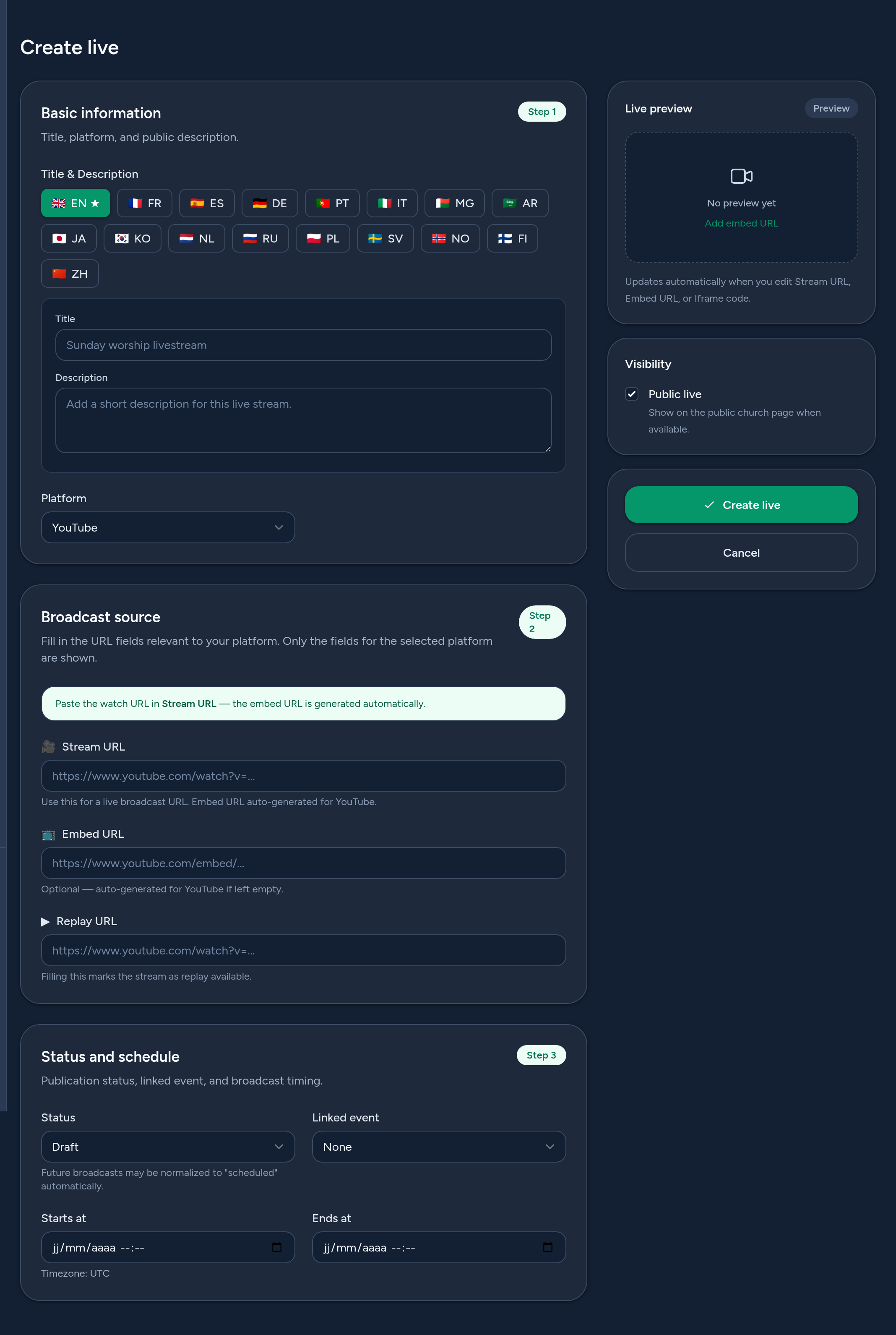
Click Create live and fill the form, which is organised in three steps:
- Basic information — the title and description (per language) and the platform (YouTube, Facebook, Vimeo, external…).
- Broadcast source — paste the stream URL; for YouTube the embed URL is generated automatically. A replay URL can be added to mark the stream as a replay. Only the fields relevant to your platform are shown.
- Status & schedule — set the status (Draft, Scheduled, Live, Replay available…), an optional linked event, and the start/end times.
Use the Live preview and the Public toggle to control what visitors see.
4 Step 2 — Manage your broadcasts
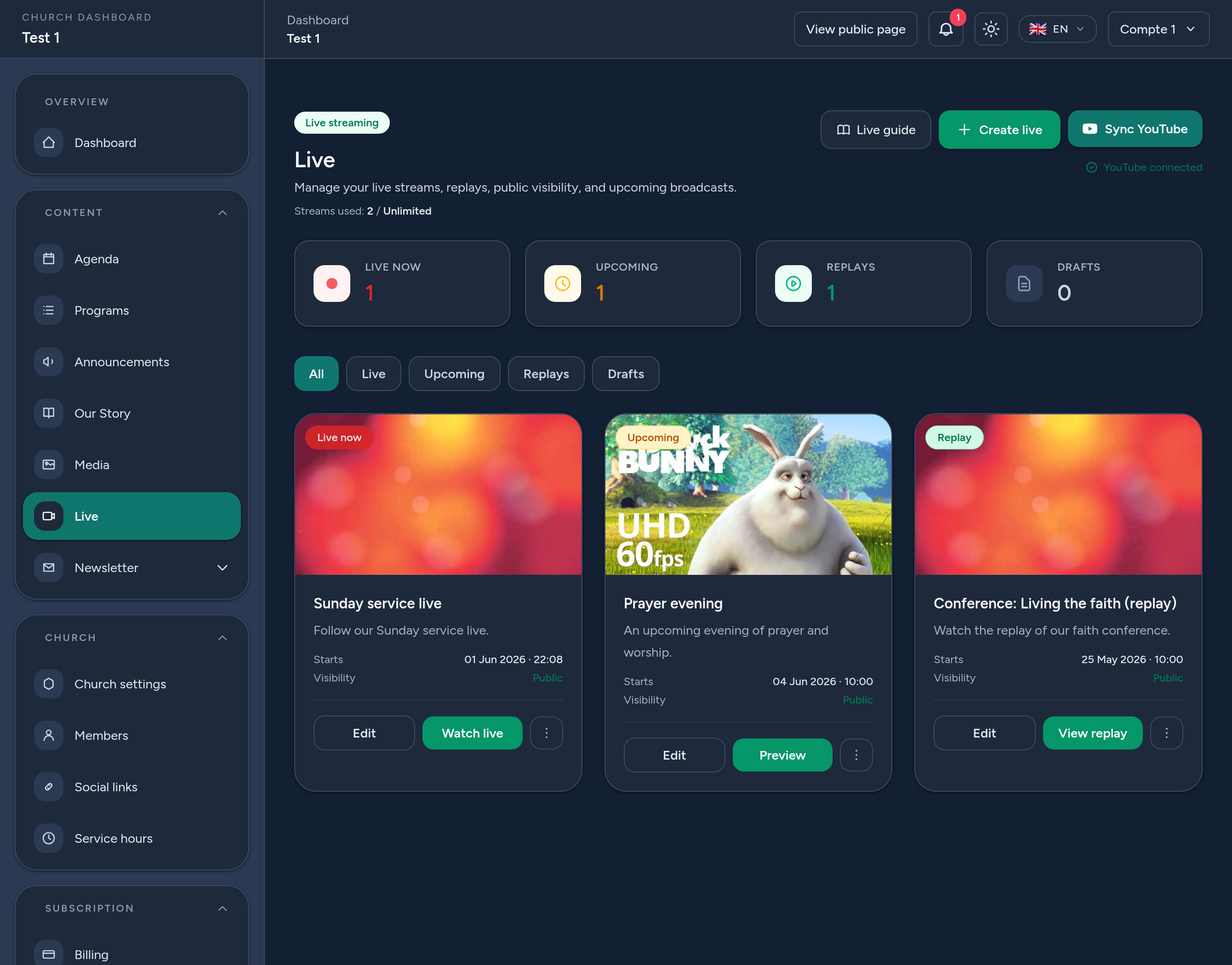
The Live dashboard gives you an at-a-glance view with counters for Live now, Upcoming, Replays and Drafts, and matching filters. For each broadcast you can:
- Edit its details, watch it, or delete it.
- Publish or hide it from your public page.
- Sync YouTube — import your channel's finished broadcasts as replays automatically.
Broadcasts are ordered intelligently: live now first, then upcoming, then replays.
5 Where your lives appear
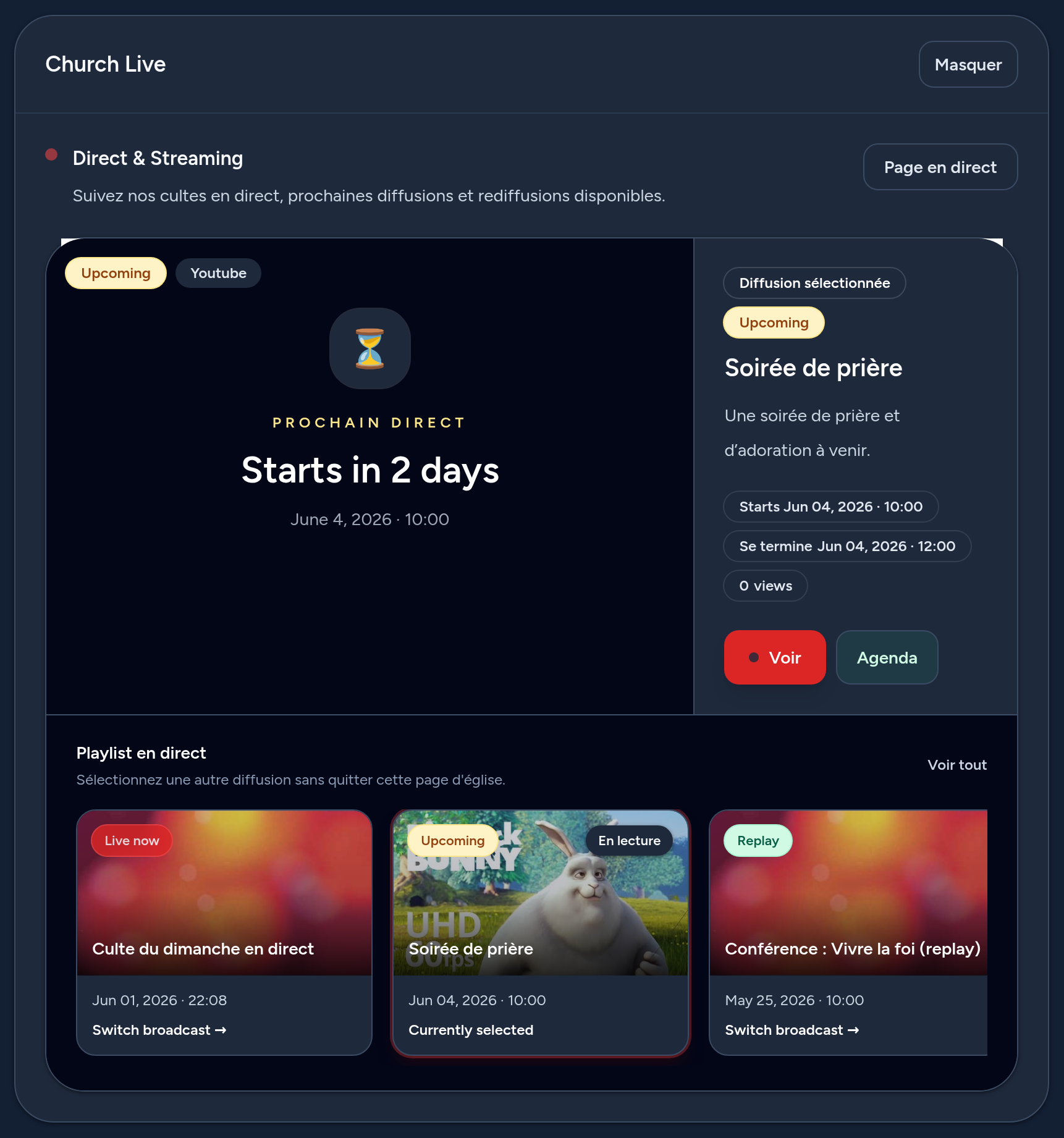
Published broadcasts appear on your public church page, in the Live section: a player shows the current broadcast — a countdown for an upcoming stream, the live video when you're on air, or the replay afterwards — with the other broadcasts in a playlist. There is also a dedicated live page and a platform-wide live directory.
Videos play inline (YouTube/Vimeo), and each visitor sees the titles and descriptions in their own language when a translation exists.
6 Tips & good practices
- Schedule ahead — create the broadcast as Scheduled so visitors see a countdown before you go live.
- Use YouTube or Vimeo for inline playback on your page.
- Add a replay URL after the service so people who missed it can catch up.
- Connect your YouTube channel and use Sync YouTube to import replays automatically.
- Link an event so your live and your agenda stay connected.
- Translate titles and descriptions so every visitor understands what's on.
That's it — you're ready to broadcast your services live and share the replays with everyone.