Service Hours module — Complete guide
Everything you need to set your weekly opening hours and show a live “open” or “closed” status on your public church page.
6 sections
On this page
1 Overview
The Service Hours module lets you publish your church's opening hours and show a live “open” or “closed” status on your public page. Visitors instantly see whether you're open right now, today's hours, and the full weekly schedule.
You can set custom hours for each day of the week, or mark your church as always open (24/7).
In short: enable the module → choose your timezone → pick Custom or 24/7 → set the open periods for each day → save. The public status updates automatically.
2 Before you begin
- Where to find it: open your Dashboard, go to Church settings, then Service Hours.
- Permissions: church owners and managers can configure service hours.
- Timezone matters: the public open/closed status is evaluated in the timezone you choose — set it to your church's local time.
3 Step 1 — Set it up
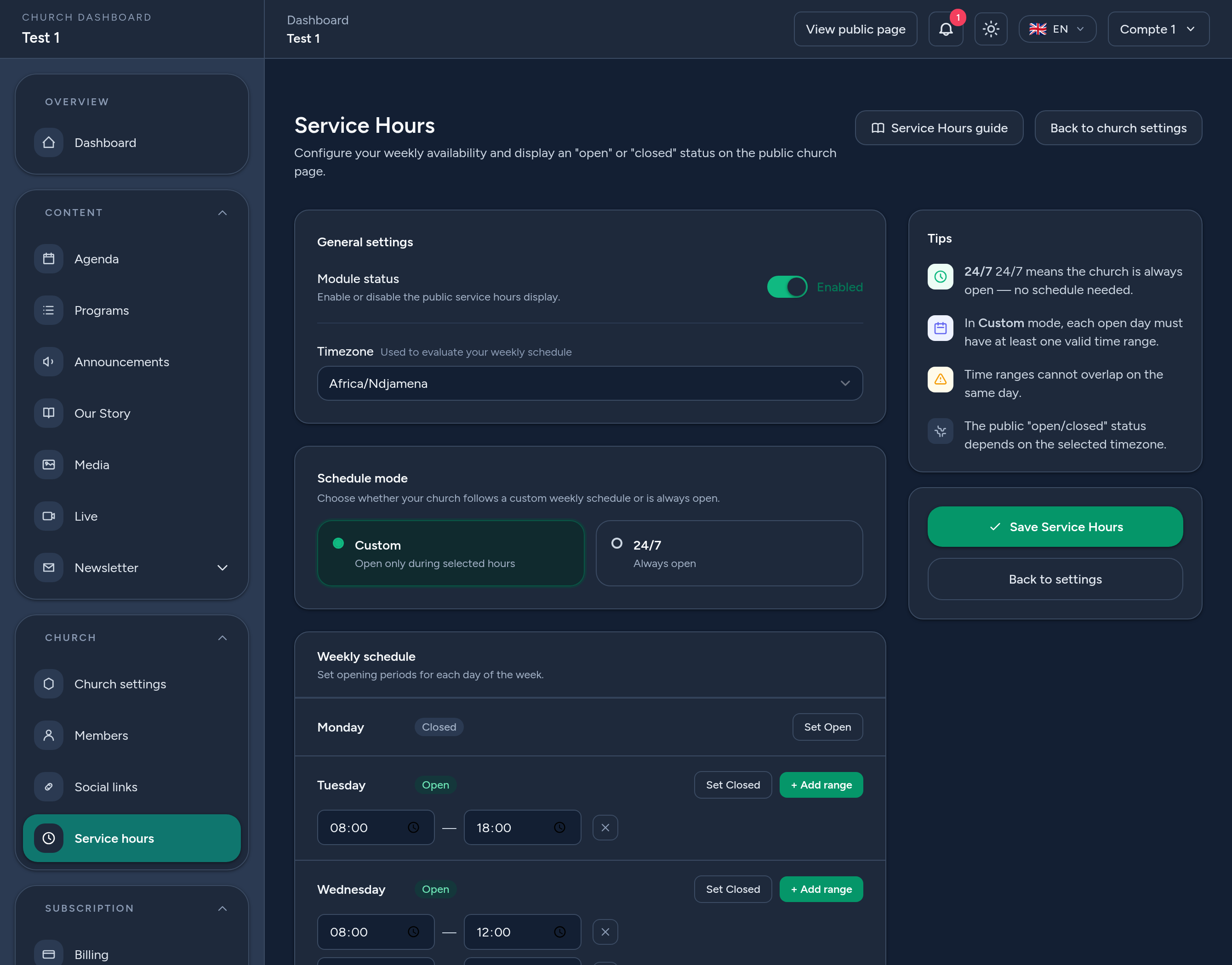
On the Service Hours screen, configure the essentials:
- Module status — turn the toggle on to display your hours publicly (off keeps it hidden).
- Timezone — used to evaluate your weekly schedule and the live status.
- Schedule mode — choose Custom (open only during the hours you set) or 24/7 (always open, no schedule needed).
4 Step 2 — Build your weekly schedule
In Custom mode, set the opening periods for each day:
- Set Open / Set Closed — mark each day open or closed.
- Add range — for an open day, add one or more time ranges (e.g. a morning service and an evening meeting).
A few rules keep your schedule valid:
- An open day needs at least one time range.
- Each range's end must be after its start.
- Ranges on the same day must not overlap.
Click Save Service Hours when you're done.
5 Where it appears
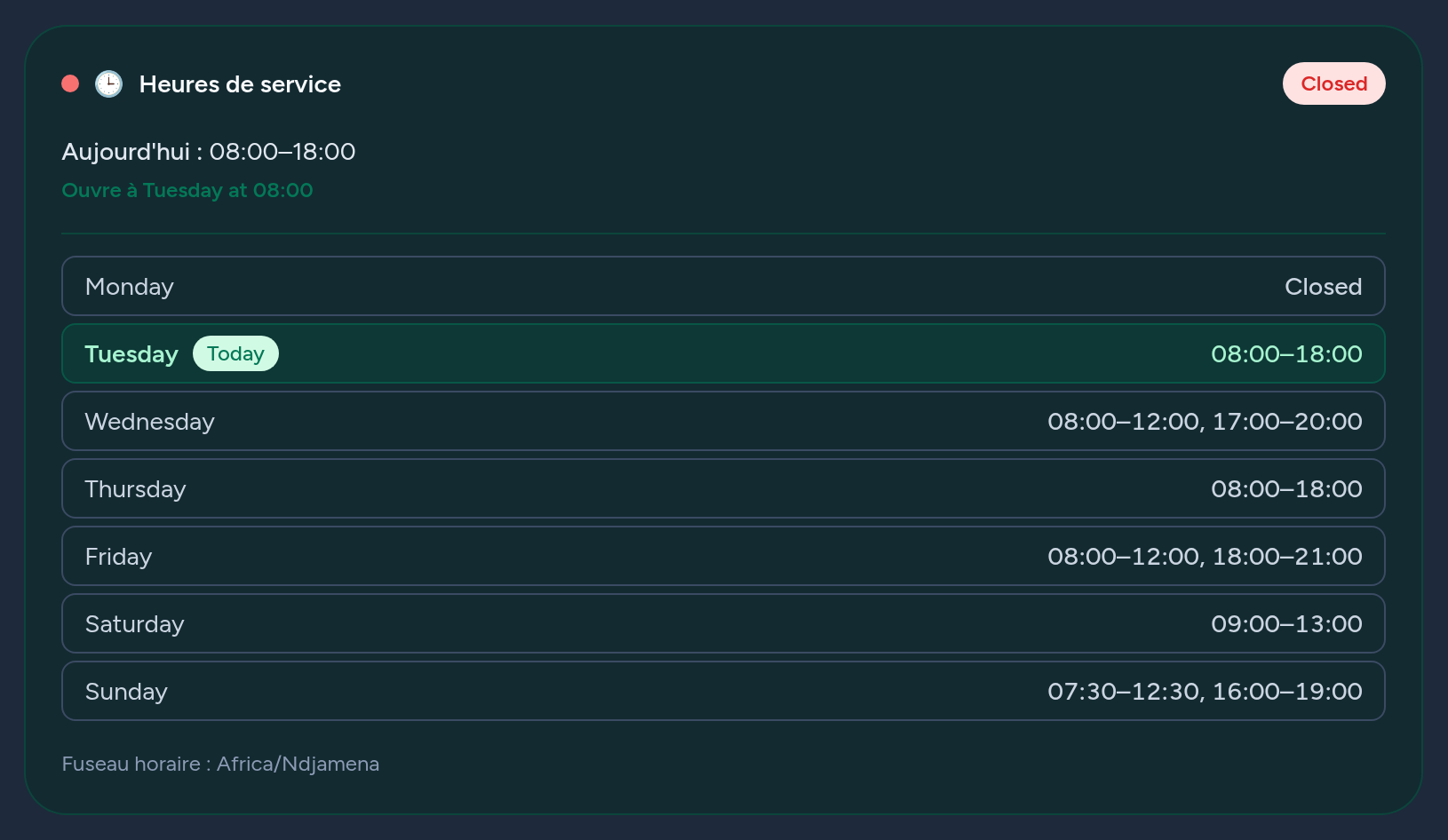
Once enabled, a Service Hours card appears on your public church page. It shows a live open / closed badge, today's hours, a helpful note (“Open now · Closes at…” or “Opens…”), and the full weekly schedule with today highlighted.
The status is computed in your chosen timezone, so it's always accurate for your visitors.
6 Tips & good practices
- Set the right timezone first — everything else depends on it.
- Use multiple ranges for days with a break (e.g. morning and evening).
- Use 24/7 for spaces that are always accessible — no weekly schedule needed.
- Turn the module off if you'd rather not show hours publicly.
- Keep it up to date around holidays so the status stays accurate.
That's it — visitors can now see at a glance when your church is open.