Church team — Complete guide
Everything you need to manage who can administer your church on the platform: roles, inviting editors, and removing access.
6 sections
On this page
1 Overview
The Church team module is where you manage who can administer your church on the platform. It is not a directory of your congregation — it's the small group of people who help you run your church's page, events, programs, newsletter, and so on.
Each person has a role that defines what they can do, and you can invite new helpers or remove their access at any time.
In short: the owner invites trusted helpers as editors → each person gets a role → they can help manage the church → you can remove access whenever you need.
2 Before you begin
- Where to find it: open your Dashboard and go to Team (under Church).
- Who can manage the team: the church owner can invite and remove editors. Managers can view the team.
- This is for staff, not members: only add people you trust to help administer the church — not your whole congregation.
3 Roles explained
There are three roles, from the most to the least powerful:
- Owner — the person who created (or owns) the church. Full control, including managing the team. There is one owner.
- Manager — a trusted administrator with broad access to manage the church. Managers are assigned by the platform team (shown as “Admin managed”).
- Editor — a helper who can manage your church content (events, programs, news, media…). You can have up to two editors.
4 Invite an editor
As the owner, you can invite helpers as editors (up to two):
- Enter the person's email (and an optional name) and click Send invitation.
- They receive an email with a secure link to accept and join your team. The invitation is valid for a limited time.
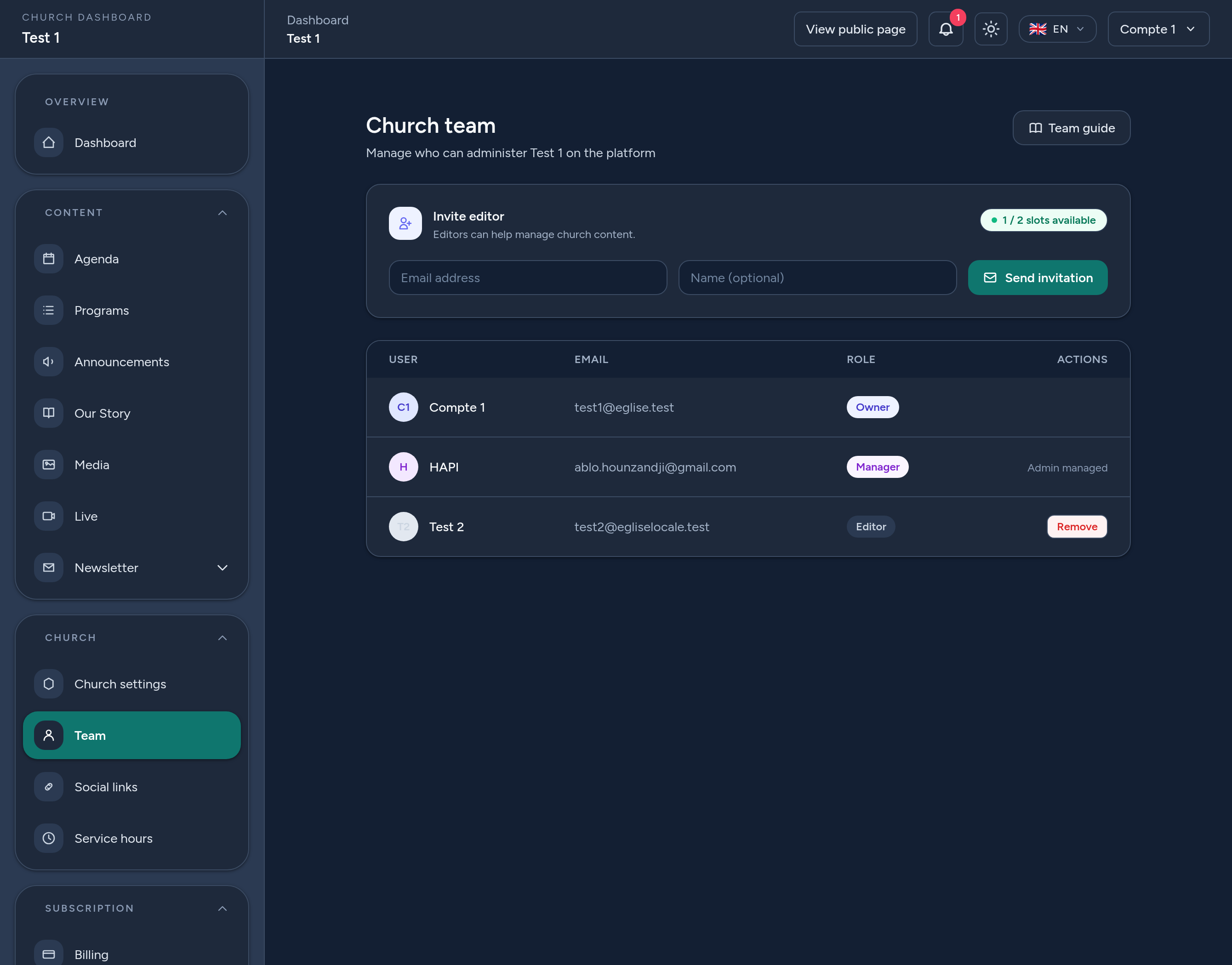
- The card shows your remaining slots (e.g. 1 / 2 slots available). When both slots are used — by active editors or pending invitations — you'll need to free one up before inviting again.
5 Manage your team
The team table lists everyone and their role. From there you can:
- Remove an editor — revoke their access instantly.
- Cancel a pending invitation — if someone hasn't accepted yet, or you invited the wrong address.
- Owners and managers can't be removed here — the owner is permanent, and managers are handled by the platform team.
6 Tips & good practices
- Invite only people you trust — editors can change your public content.
- Use the right email — invitations go to that address; double-check it before sending.
- Free up a slot by removing an editor or cancelling a stale invitation before inviting someone new.
- Review your team from time to time and remove access for people who no longer help.
That's it — you can now safely share the work of running your church with a trusted team.