Federation module — Complete guide
Everything you need to register a federation, get it verified, affiliate churches, manage your plan and appear in the public directory.
9 sections
On this page
1 Overview
A federation is a church federation or umbrella organisation — a union, convention, diocese, mission, apostolic network or denomination that brings several churches together. It is a distinct type of organisation: a federation is not a church, and a church can exist independently of any federation.
With the Federation module you register your federation, get it verified by our team, affiliate churches (always validated by both parties), publish a public profile, and unlock modules according to your subscription plan.
In short: register your federation → get verified → affiliate churches → manage your plan and modules → appear in the public directory.
2 Before you begin
- A federation is not a church: it is a separate organisation that groups churches. The two are governed independently.
- One active affiliation per church: a church can belong to only one active federation at a time.
- Both parties validate: an affiliation is only active once both the church and the federation have agreed.
- Verification: a new federation is reviewed by our team before it appears publicly.
3 Step 1 — Register your federation
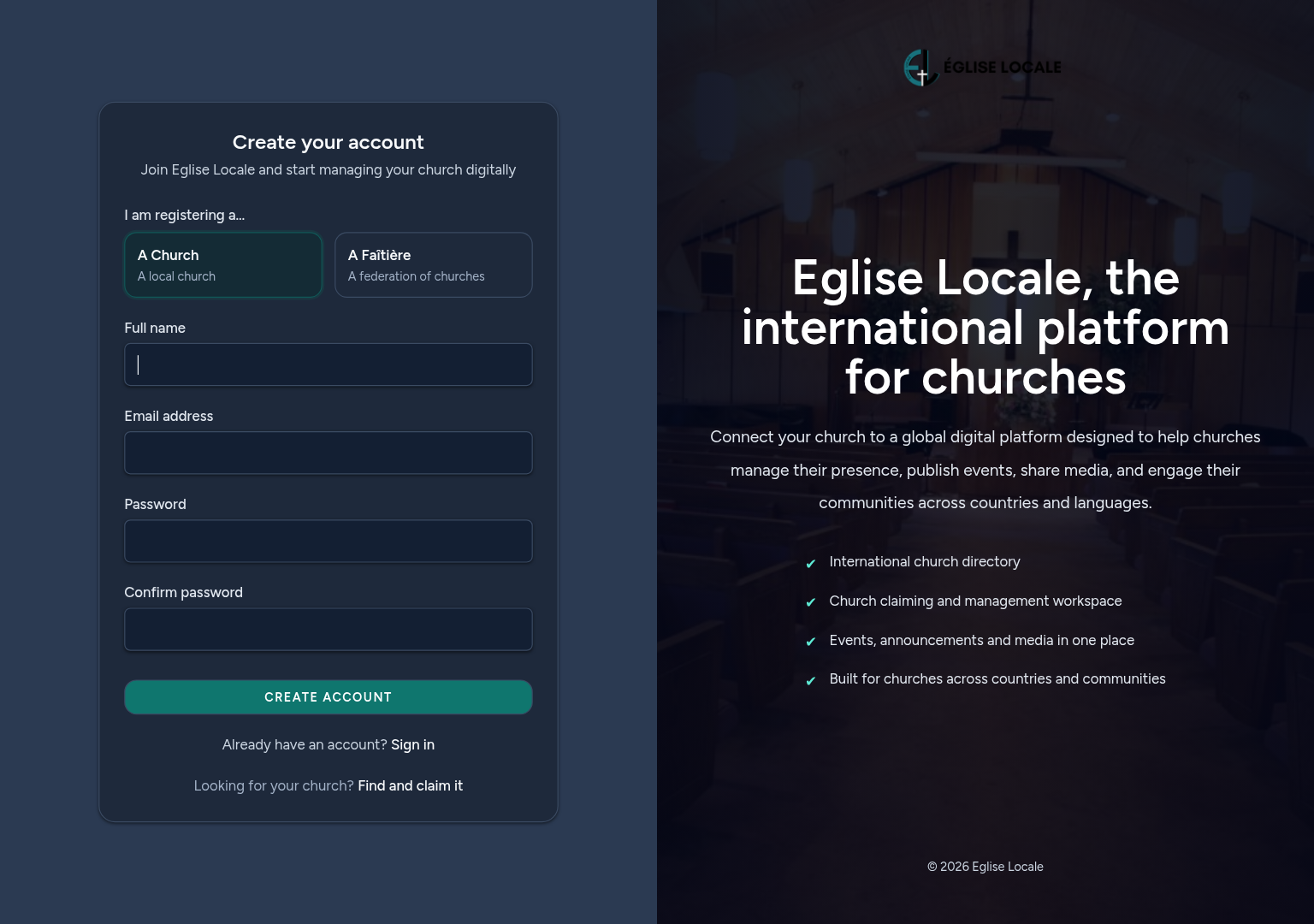
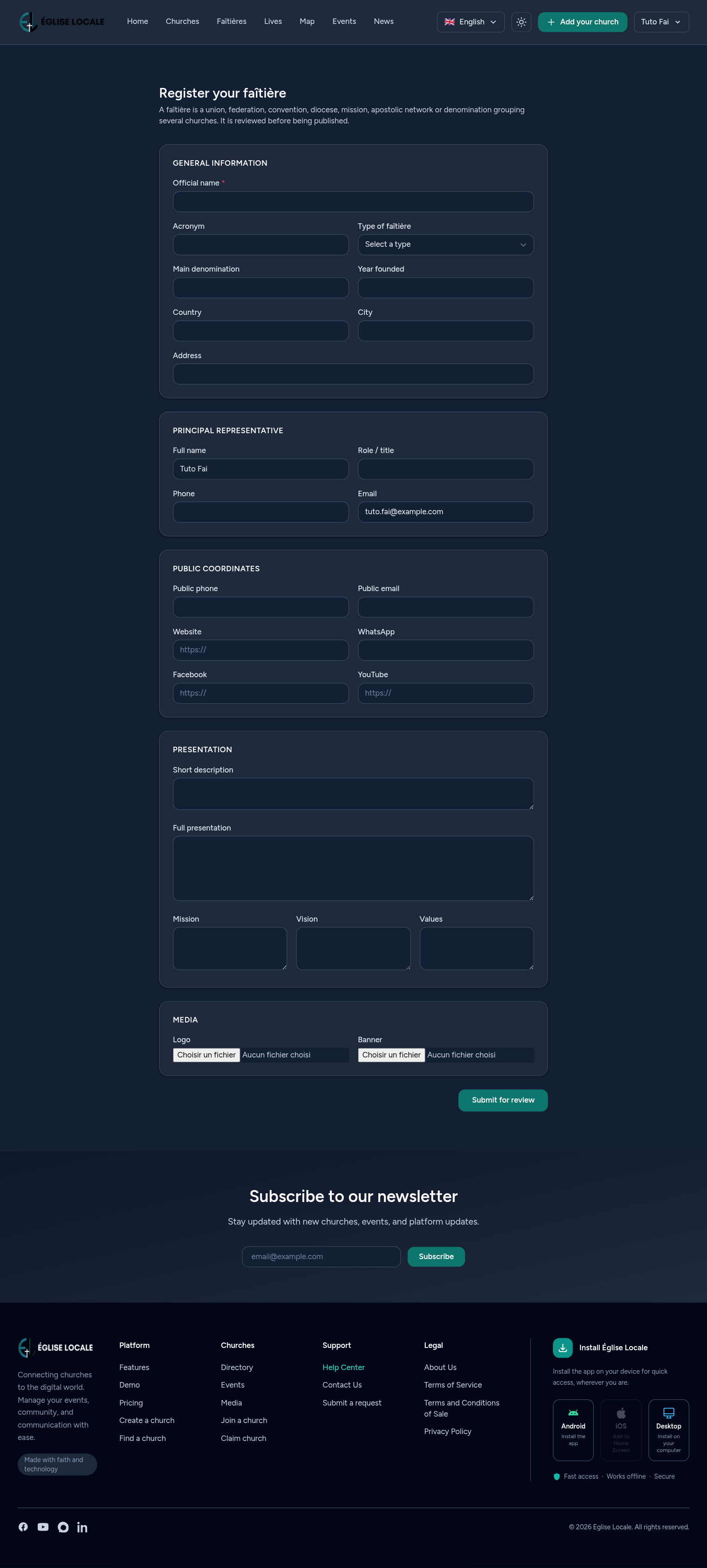
On the registration page, choose “A Federation” as the organisation type, then complete the dedicated form:
- General information — official name, acronym, type of federation, main denomination, year founded, country, city, address.
- Principal representative — name, role, phone and email of the person responsible.
- Public contacts — phone, email, website and social links shown on your public profile.
- Presentation — short description, full description, mission, vision and values.
- Media — a logo and a banner image.
Once submitted, your federation is created with a pending status and sent for review.
4 Step 2 — Verification & your dashboard
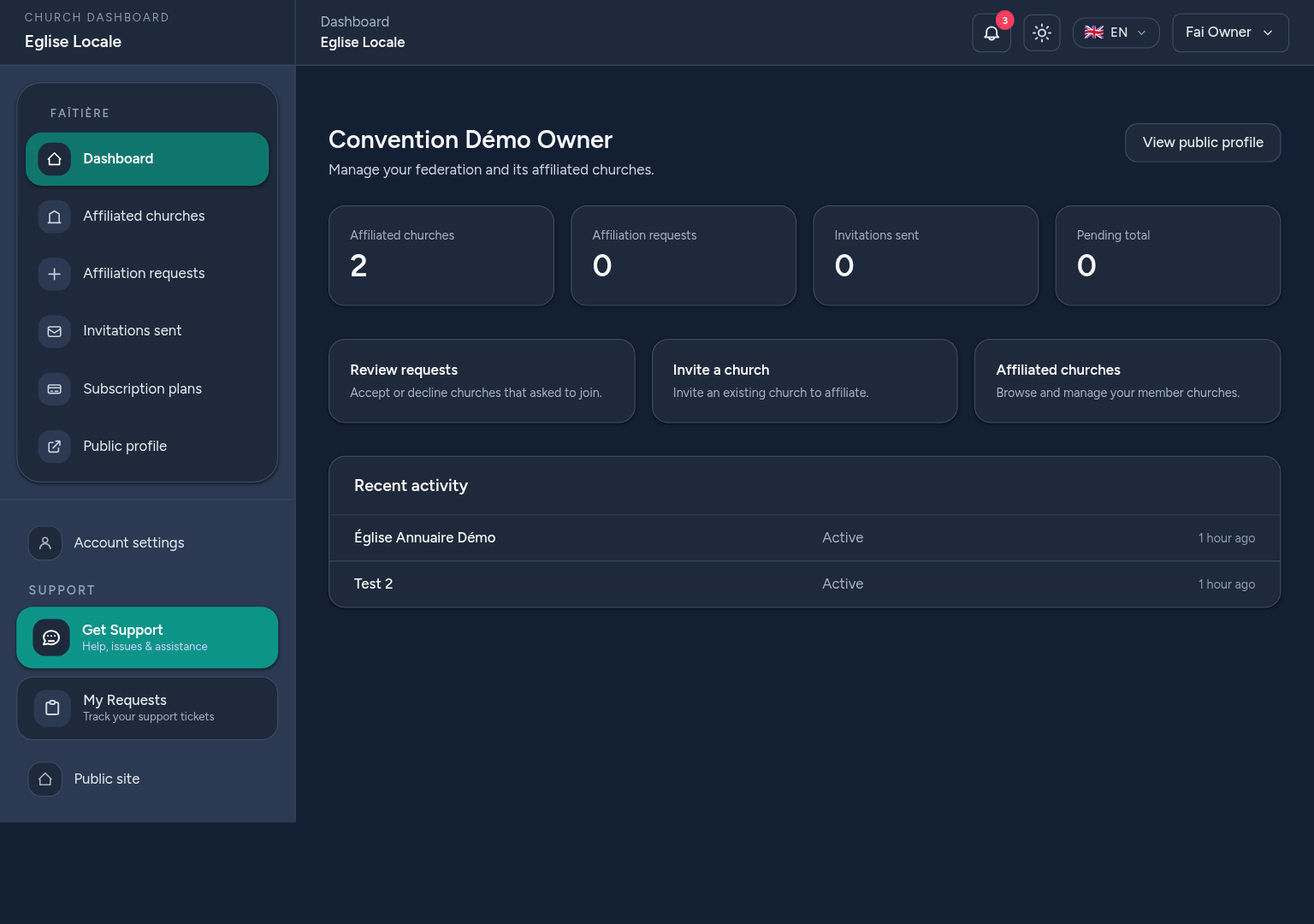
After submission your federation is awaiting verification. You receive an email confirmation, and our team reviews it. Once approved, it becomes public and earns the “Verified federation” badge.
Your dashboard then shows key figures — affiliated churches, pending requests, invitations sent — and quick actions to manage your federation day to day.
The verified badge depends on this admin validation, not on your subscription plan.
5 Step 3 — Affiliate churches
An affiliation can start from either side, and is always validated by both parties:
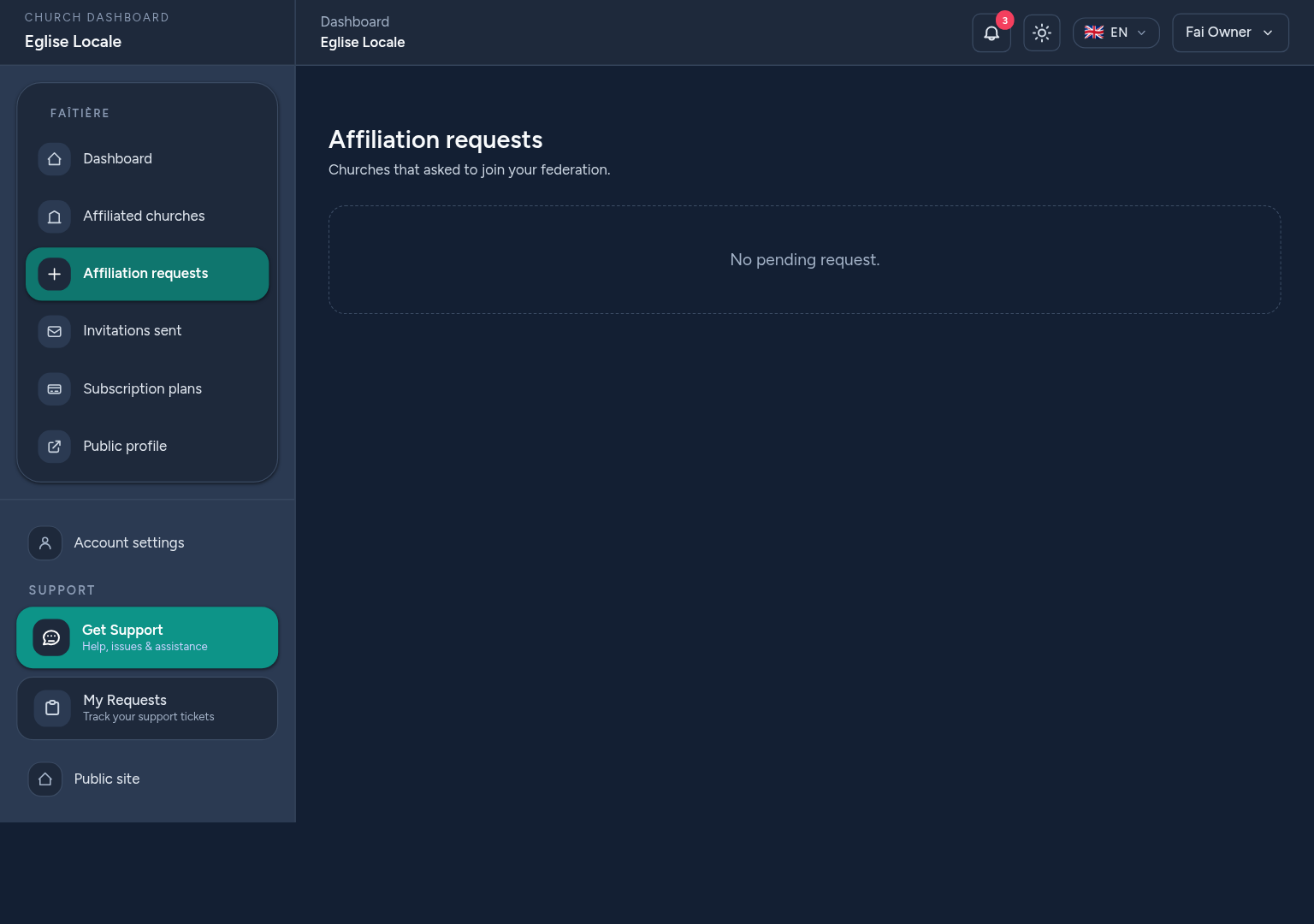
- A church requests to join — it appears under Affiliation requests; you accept or decline it.
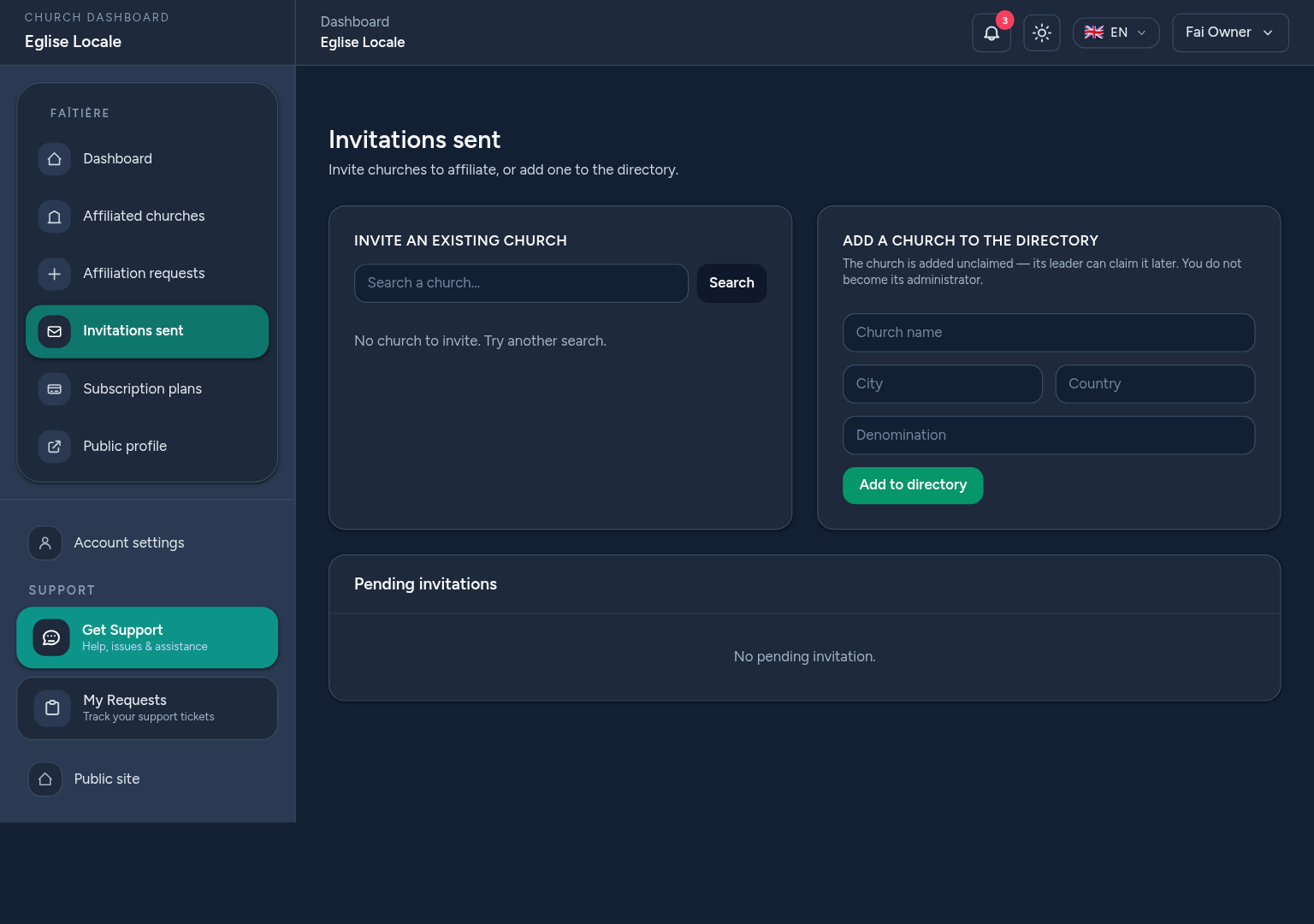
- You invite a church — from Invitations sent, search an existing church and send an invitation; the church then accepts or declines.
When an affiliation becomes active, any other pending request for that church is closed automatically, since a church can have only one active affiliation.
6 Step 4 — Affiliated churches & the directory
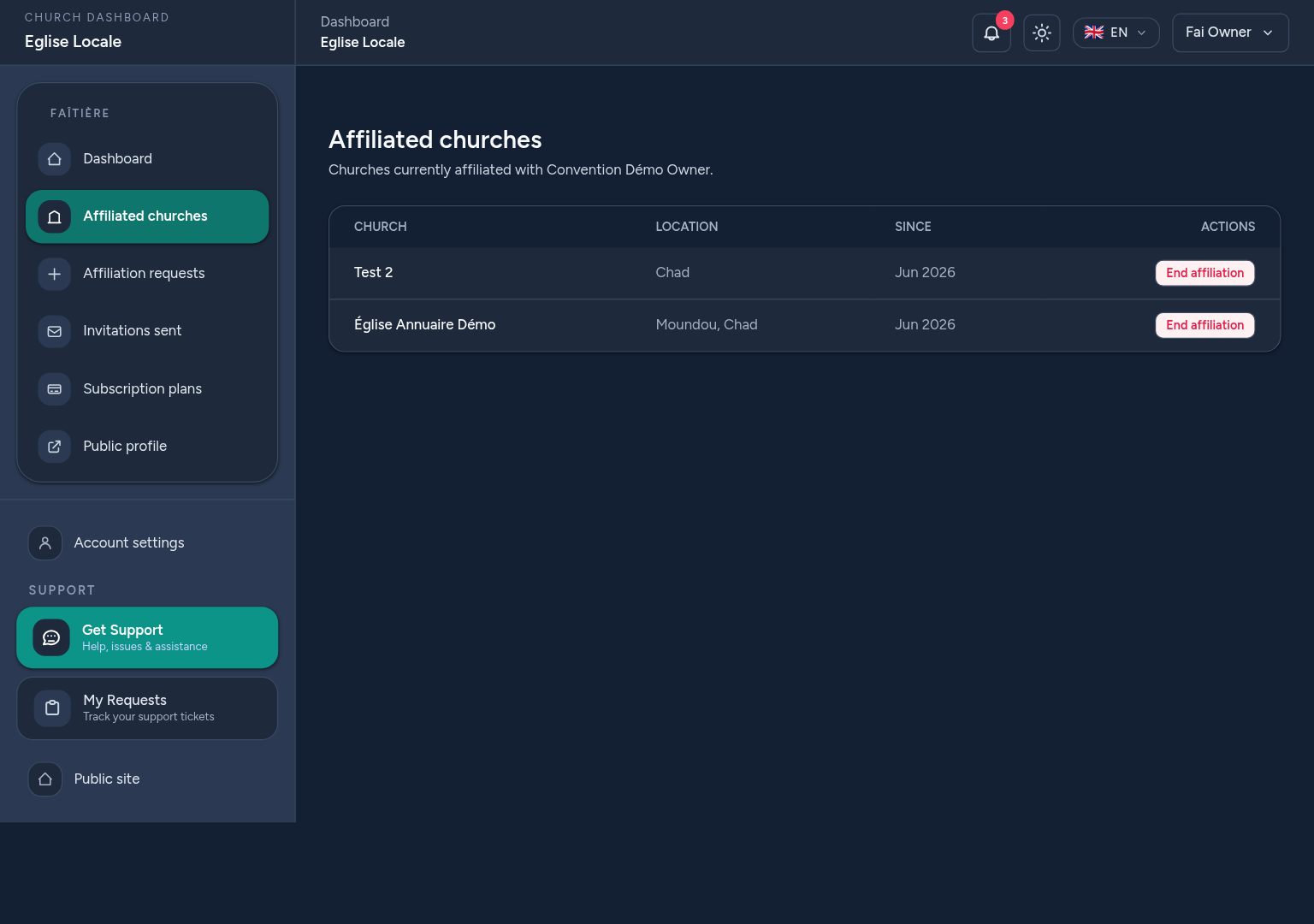
The Affiliated churches page lists every church currently in your federation, where you can browse them and end an affiliation if needed.
From Invitations sent you can also add a church to the directory. The church is added unclaimed: you do not become its owner or administrator, and its real leader can claim it later through the normal claim process. This feature is part of a paid plan.
7 Step 5 — Your plan & modules
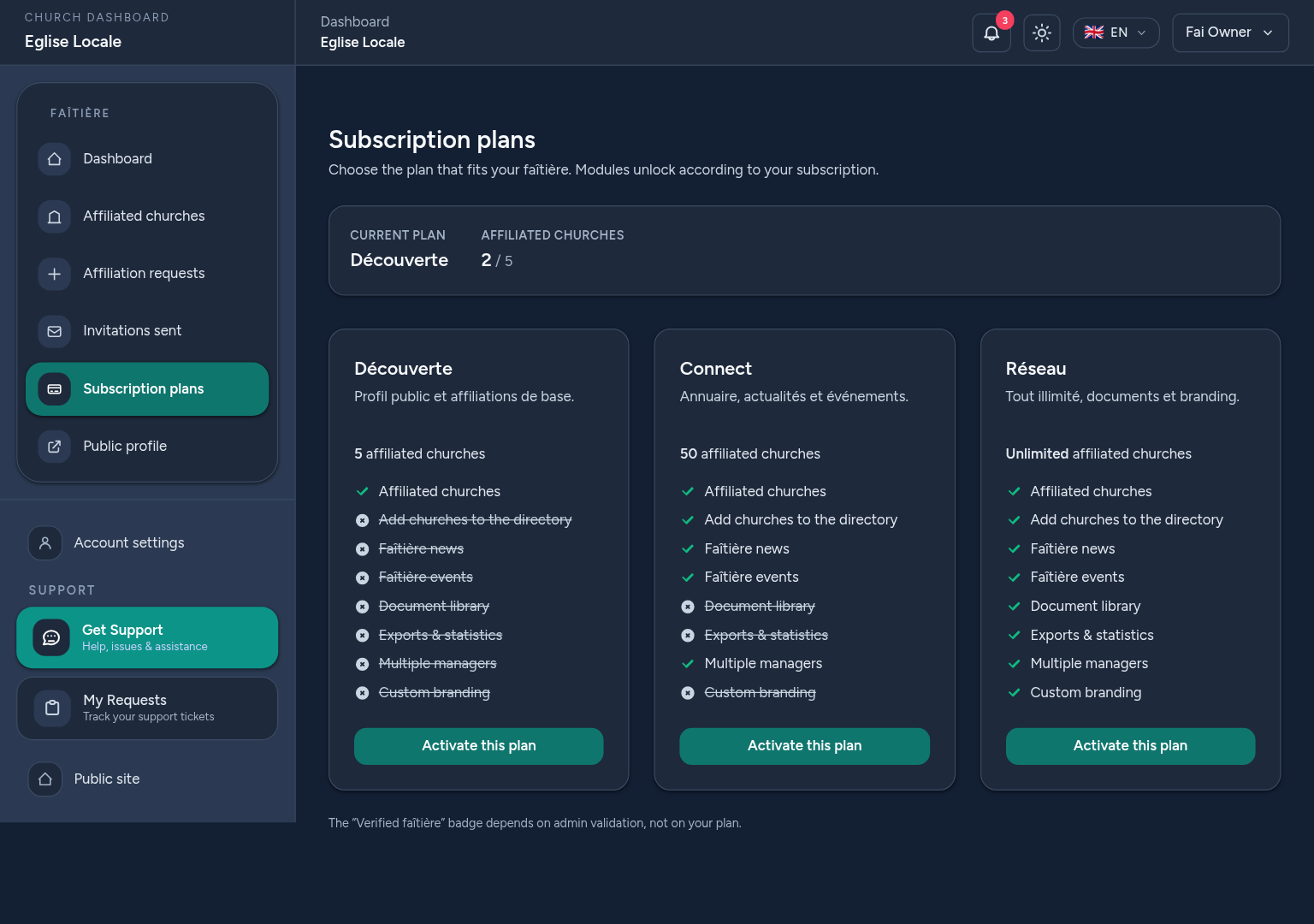
The Subscription plans page shows the available tiers — Découverte, Connect and Réseau — and your current plan. Each tier unlocks specific modules and a maximum number of affiliated churches:
- Découverte — public profile and basic affiliations, up to a small number of churches.
- Connect — adds the directory, news and events, with more affiliated churches.
- Réseau — unlimited churches, plus documents, exports and custom branding.
Modules unlock automatically according to your plan; if you reach your churches limit, upgrade to add more.
8 Where your federation appears
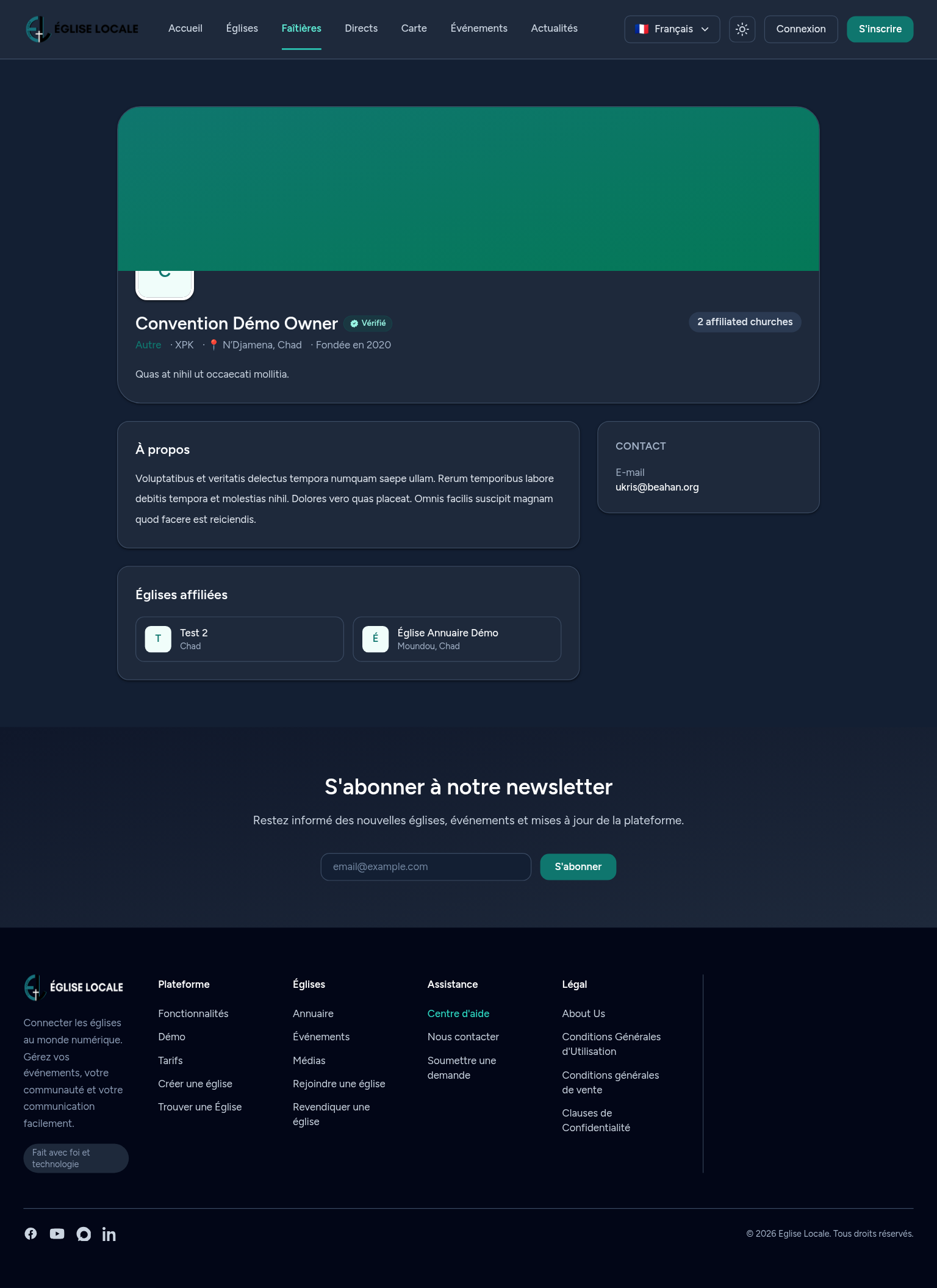
Once approved, your federation has a public profile at /faitieres/{slug} showing its presentation, mission, contacts, the verified badge and its affiliated churches.
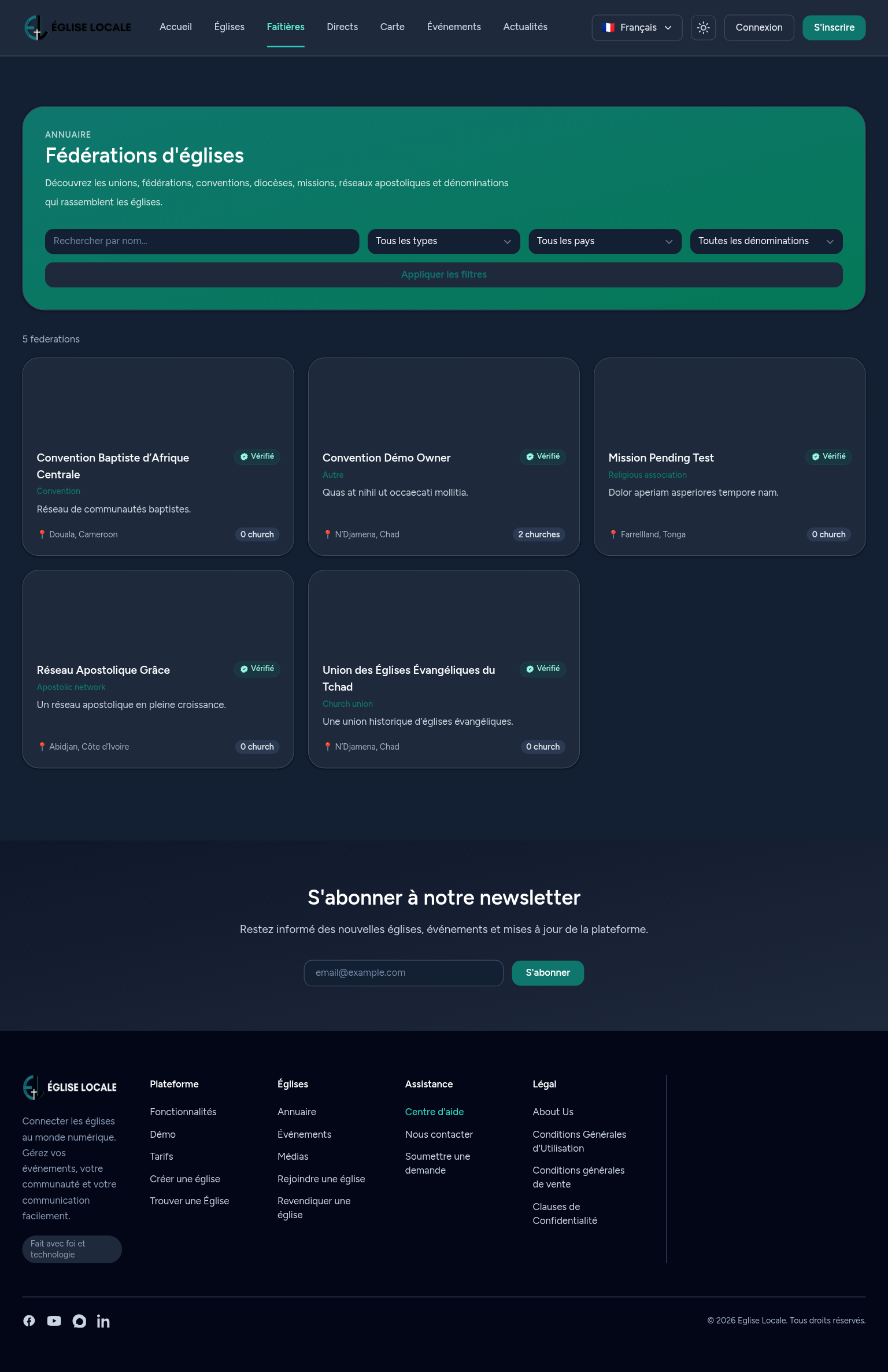
It also appears in the public federations directory, where visitors can search and filter federations by country, denomination and type. Each visitor sees your content in their own language when a translation exists.
9 Tips & good practices
- Complete your profile — a logo, banner, mission and clear description build trust with churches.
- Respond quickly to affiliation requests so churches feel welcomed.
- Use invitations to proactively bring churches you already know into your federation.
- Add to the directory only churches you genuinely federate — their leaders can claim them later.
- Pick the right plan — match your tier to the number of churches and modules you need.
- Translate the essentials so your profile reaches churches in their own language.
That's it — you're ready to grow and manage your federation on the platform.